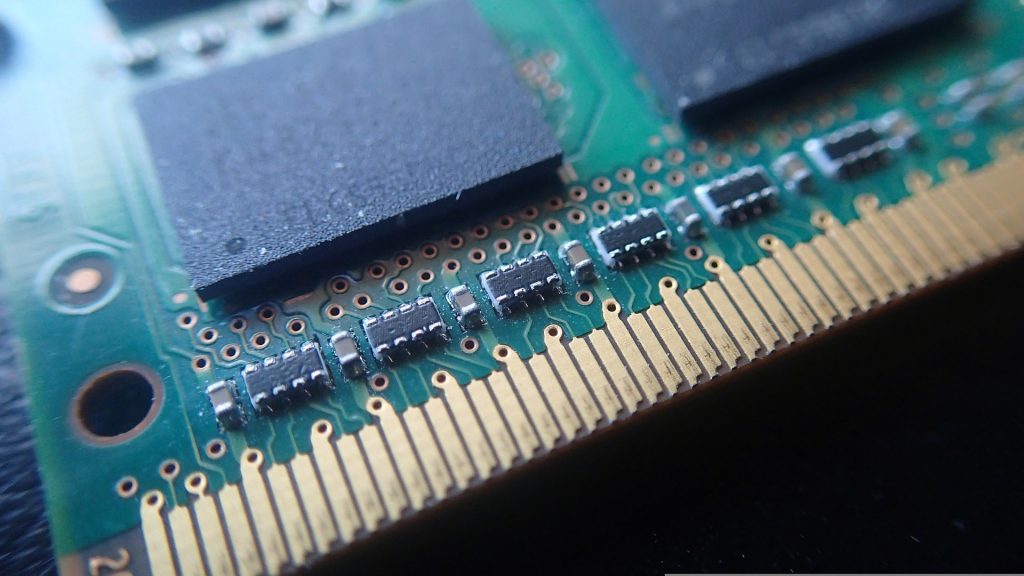
RAM gives your PC fast temporary working space for the game and other programs currently running. Having enough can help prevent slowdowns caused by memory pressure, but adding more will not automatically raise your FPS. Once capacity is sufficient, your CPU, GPU, memory configuration and the game itself determine what an upgrade can achieve.
My starting point is simple: check what is limiting the PC before buying anything. Moving from an overloaded 8GB system to a suitable larger kit can be useful. Moving from 32GB to 64GB when your games already have plenty of memory available is a very different proposition.
What Does RAM Actually Do While You Play?
Your game is installed on an SSD or hard drive. While it runs, the system brings code and data into RAM so the processor can access them quickly. That working data can include parts of the game world, simulation state and resources being prepared for use. The operating system, browser, voice chat and other applications need memory too.
I think of RAM as workspace. A larger workspace helps when everything no longer fits, but an empty extra desk does not make you work twice as fast.
Ordinary system RAM is volatile: its contents do not survive a loss of power. It is not where you should keep backups or permanently store your game library. Saves and installed files belong on persistent storage.
RAM vs. VRAM vs. SSD: Which Does What?
| Component | Main role | What an upgrade may help with |
|---|---|---|
| System RAM | Temporary working memory for the CPU, games and applications | Memory shortages, multitasking and some memory-related stuttering |
| VRAM | Memory on a dedicated graphics card for graphics resources | Graphics workloads that exceed the card’s memory capacity; usually requires a different graphics card |
| SSD or HDD | Persistent storage for Windows, installed games and saves | Loading and storage-related delays; an SSD is generally much faster than an HDD |
More system RAM does not turn an 8GB graphics card into a 16GB card. Integrated graphics are different because they use shared system memory; Intel explains this arrangement in its shared graphics memory guidance. On such systems, memory bandwidth and available capacity can matter to both the CPU and graphics.
How Much RAM Do You Need for Gaming?
For a new general-purpose gaming PC, I would normally plan around 32GB. For an existing 16GB machine, I would check actual usage before upgrading. These are practical starting points, not requirements that apply to every game. Always check the developer’s recommended specifications, particularly for heavily modded games or demanding simulators.
| Capacity | Where it can fit | My buying advice |
|---|---|---|
| 8GB | Older or lightweight games with limited background activity | Keep expectations modest; check each game’s requirements. I would avoid choosing it for a new general gaming build. |
| 16GB | Many games and moderate multitasking | Still usable. Upgrade when your actual games and applications put it under pressure. |
| 32GB | More room for demanding games, background apps and some modded setups | My usual starting point for a new gaming build, subject to budget and requirements. |
| 64GB or more | Particularly demanding mods, simulations or substantial creative workloads | Buy for a demonstrated need, not an assumed FPS boost. |
Your gaming habits matter as much as the game’s name. Running only a game is different from keeping a browser full of tabs, voice chat and recording tools open. Intel’s gaming laptop guide also identifies 32GB as useful for resource-intensive multitasking.
Does More RAM Increase FPS?
It can when insufficient memory is part of the problem. Under memory pressure, Windows may need to move data between RAM and storage more frequently. Reducing that pressure can improve responsiveness and frame delivery, although the result depends on the workload.
Once the game has enough capacity, doubling it does not imply doubling performance. A GPU-limited game will not become dramatically faster simply because unused RAM increased. Intel’s bottleneck guide emphasizes balancing components and accounting for background applications.
I would look at stutters as well as average FPS. A game can report a reasonable average while occasional long frames make it feel uneven. RAM is one possible cause, alongside shader compilation, storage activity, drivers and CPU or GPU limitations.
Even in a shooter such as Counter-Strike 2, there is no fixed FPS gain you can promise from “more RAM” without knowing the original configuration and testing the same conditions.
Capacity, Speed and Latency Explained
Three specifications are worth separating:
- Capacity, in GB: how much working data the memory can hold.
- Data rate, in MT/s: how many million transfers per second it supports.
- Timings, including CL: delays expressed in memory clock cycles.
A lower CL number is not automatically faster across different data rates. Cycle duration matters too. Kingston’s CAS latency explanation covers how those specifications work together.
For shopping, I would first make sure the kit is compatible and large enough, then compare speed, timings and price. There is no useful rule that fast-paced games always need low latency while slower games need bandwidth. The engine, processor and workload determine how memory performance affects the result.
Memory latency is also only one part of system responsiveness. It should not be confused with mouse-to-screen input lag or your network ping.
DDR4, DDR5 and Dual-Channel Memory
DDR4 and DDR5 are generations of system memory. They are not interchangeable in the same slot; the motherboard and processor determine what you can use. Kingston’s DDR4 and DDR5 comparison explains their platform and bandwidth differences.
The terminology can be confusing: DDR memory is a form of synchronous DRAM. SRAM is commonly used for processor caches, rather than being an alternative memory kit you choose for a gaming motherboard.
On mainstream dual-channel desktop platforms, a properly installed matched pair can provide more bandwidth than one module. Use the slots specified in the motherboard manual. With four slots, do not assume that placing two sticks beside each other is correct.
DDR5 also has subchannels within each module, but that does not mean one DDR5 stick provides the same configuration as populating both of the processor’s memory channels. Intel’s RAM selection guide explains why installation and matching specifications matter.
How to Check Whether You Need More RAM
Before spending money, I would run this comparison:
- Check installed memory. In Windows, press Ctrl + Shift + Esc, then open Performance > Memory in Task Manager.
- Play normally. Use a demanding area of the game and keep your usual background applications running.
- Look for sustained pressure. Check available memory and whether the slowdown coincides with heavy memory use. One high percentage reading is not proof by itself.
- Repeat with unnecessary apps closed. Use the same area and settings. If performance improves, investigate which applications are consuming resources.
- Check other limits. Look at CPU, GPU and storage activity before blaming RAM. Compare with the game’s recommended specifications.
Intel documents the Task Manager memory view in its computer RAM guide. I would use measurements from your normal session rather than an empty Windows desktop to make the decision.
Should You Change the Windows Page File?
The page file helps Windows manage memory and extends the system’s commit limit. It is backed by storage, so it is not equivalent to adding physical RAM. Microsoft’s page file documentation explains its role and why reaching the commit limit can cause failures.
I would normally leave it system-managed. Disabling it is not a general gaming optimization, and choosing an arbitrary large size does not create a RAM upgrade. It belongs in the wider process of checking Windows gaming performance, with changes guided by evidence.
What to Check Before Buying a RAM Upgrade
- Compatibility: confirm the memory generation, supported capacities and module format for your exact system.
- Upgrade access: some laptops have soldered memory or limited expansion options.
- Kit configuration: prefer a matched kit where practical. Identical branding does not guarantee two separately purchased kits will work together at their advertised settings.
- Supported profiles: XMP and EXPO are memory overclocking profiles, not universal guarantees. Check motherboard and CPU support before enabling one, and verify stability afterward.
- Actual need: decide whether you are solving a capacity shortage, changing channel configuration or replacing the entire platform.
AMD publishes an overclocked memory compatibility list for supported Ryzen configurations. Your motherboard’s tested-memory list and manual are useful checks too.
If you are building a gaming PC, choose RAM as part of the complete system budget. My preference is enough compatible memory and a balanced CPU/GPU combination. I would not sacrifice a worthwhile graphics upgrade just to leave a much larger amount of RAM unused.

I’m Alex Mercer, a senior gaming and esports writer at GamingImba. I’ve been involved in gaming for as long as I can remember, and for more than a decade I’ve been writing about competitive play, industry trends, and the culture that grows around games.
My work focuses on esports, online gaming platforms, and how technology continues to shape the way people play, compete, and connect. I’m especially interested in meta shifts, balance changes, and the business decisions that influence modern games behind the scenes.
At GamingImba, I aim to break down complex topics in a way that’s clear, honest, and useful—whether that means analyzing a major tournament, exploring new gaming platforms, or looking at how player behavior evolves over time.
I follow global esports scenes closely, experiment with different games and mods in my free time, and enjoy digging into the details that most players notice but rarely stop to question.