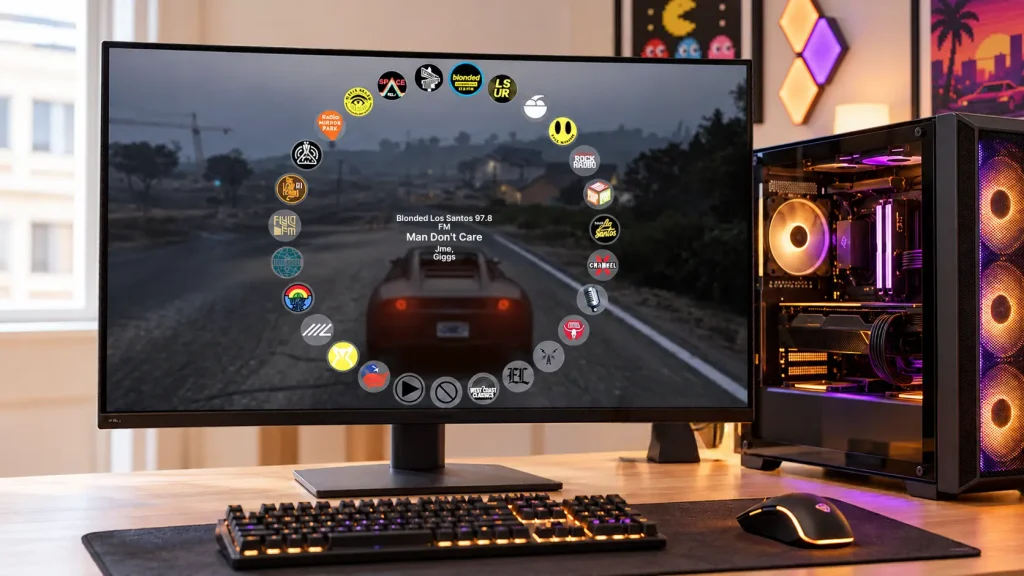
To change the radio station in GTA 5, hold Q on PC or Left on the D-Pad on PlayStation and Xbox, choose a station with your mouse or right analog stick, then release the button. To stop the music, open the same wheel and select Radio Off.
How to Change Radio Stations on PC
Hold Q inside a vehicle to open the radio wheel, move your mouse toward a station, then release Q to select it. For quick station changes, press comma (,) or period (.); mouse-wheel switching depends on your control settings.
Choose a station with the radio wheel
- Enter a vehicle with a working radio.
- Hold Q to display the station wheel.
- Move your mouse toward the station you want.
- Release Q to confirm.
Use the wheel to jump directly to Los Santos Rock Radio, Non-Stop-Pop FM, Radio Los Santos, West Coast Classics, or Radio Mirror Park without cycling through other stations.
Switch stations without opening the wheel
Use these default keyboard shortcuts while inside a vehicle:
- Comma (,): Previous station.
- Period (.): Next station.
You can also use the mouse wheel if your current control settings assign it to station switching. If scrolling changes weapons or performs another action, use the keyboard shortcuts or open the radio wheel with Q.
Turn the radio off
- Hold Q to open the radio wheel.
- Highlight Radio Off.
- Release Q.
Selecting Radio Off stops the vehicle radio while leaving engine sounds, dialogue, and other game audio audible.
How to Change Radio Stations on PlayStation & Xbox
On PS4, PS5, Xbox One, and Xbox Series X|S, hold Left on the D-Pad and tilt the right analog stick toward a station. Release the D-Pad button to confirm your selection, or choose Radio Off to stop playback.
PlayStation: PS4 and PS5
- Enter a vehicle with a radio.
- Hold Left on the D-Pad on your DualShock 4 or DualSense controller.
- Tilt the right analog stick toward your chosen station.
- Release Left on the D-Pad to select it.
For a quick station change, tap Left on the D-Pad instead of holding it. To turn the radio off, open the wheel, highlight Radio Off, and release the button.
Xbox: Xbox One and Series X|S
- Enter a vehicle with a radio.
- Hold Left on the D-Pad.
- Tilt the right analog stick toward the station you want.
- Release the D-Pad button to confirm.
Tap Left on the D-Pad to cycle stations quickly. To stop the music, select Radio Off from the wheel.
Move the right stick to make a selection; pressing it inward is unnecessary. The same D-Pad and right-stick method applies when using a controller on PC with the default layout.
How to Add Your Own Music: Setting Up Self Radio (PC Only)
Copy DRM-free MP3, WMA, or M4A files into your PC edition’s User Music folder, then select Settings > Audio > Perform Full Scan for Music. After scanning, enter a vehicle and choose Self Radio from the radio wheel.
Self Radio plays local music files in GTA 5 and GTA Online on PC. PlayStation and Xbox do not offer this custom station feature.
1. Open the correct User Music folder
For GTA V Legacy, open:
Documents\Rockstar Games\GTA V\User Music
If you play GTA V Enhanced, check the edition-specific folder under Documents\Rockstar Games instead of assuming it uses the Legacy folder. Use the User Music folder belonging to the edition you actually launch.
Open Documents through File Explorer rather than assuming it is on your C: drive. Windows may redirect Documents to OneDrive or another location.
2. Copy your music files
Place DRM-free MP3, WMA, or M4A files inside User Music. Start with locally stored tracks that play correctly in a desktop music player.
Offline downloads from subscription streaming apps are not ordinary audio files you can import. Renaming a file’s extension to .mp3 does not convert it.
3. Perform a full music scan
- Launch your PC edition of GTA 5.
- Open the pause menu with Esc.
- Select Settings > Audio.
- Select Perform Full Scan for Music.
- Wait for the scan to finish.
- Enter a vehicle, hold Q, and select Self Radio.
4. Choose how Self Radio plays your songs
Under Settings > Audio, adjust Self Radio Mode:
- Sequential: Plays files in order and allows track skipping.
- Shuffle: Randomizes playback and allows track skipping.
- Radio: Randomizes songs with adverts and DJ chatter; manual track skipping is unavailable.
Enable Auto-Scan for Music if you want the game to run a quick scan when it starts.
Quick Reference: GTA 5 Radio Controls
- PC – Keyboard and Mouse
Default button: Hold Q.
Radio wheel selection: Move the mouse toward a station, then release Q.
Quick change: Comma / period; mouse wheel if configured for radio switching.
Off option: Select Radio Off on the wheel. - PlayStation – PS4 and PS5
Default button: Hold Left on the D-Pad.
Radio wheel selection: Tilt the right analog stick, then release the D-Pad button.
Quick change: Tap Left on the D-Pad.
Off option: Select Radio Off on the wheel. - Xbox – One and Series X|S
Default button: Hold Left on the D-Pad.
Radio wheel selection: Tilt the right analog stick, then release the D-Pad button.
Quick change: Tap Left on the D-Pad.
Off option: Select Radio Off on the wheel.
Common Radio Issues & Quick Fixes
The station changes when I switch vehicles
If another vehicle starts playing a different station, reopen the radio wheel and select your preferred station again. A change between vehicles does not necessarily mean your controls or settings are broken.
Vehicles and scripted mission moments can start with a different station or override normal playback. Choosing a station does not guarantee that every vehicle will keep using it.
- Select your station again after entering the vehicle.
- Test in free roam if a mission keeps changing or disabling the radio.
- Try another ordinary road vehicle if radio selection is unavailable.
Self Radio does not appear or play my songs
Check the User Music folder for the edition you are running, then perform a full scan again. If the station still fails, test a small batch of DRM-free MP3 files that play normally outside the game.
- Check the folder path, especially after switching between Legacy and Enhanced.
- Download cloud-only files locally before scanning.
- Play the tracks in a desktop music player to check for damaged files.
- Run Settings > Audio > Perform Full Scan for Music after adding or replacing tracks.
- Restart GTA 5 and check the radio wheel again.
- Select Self Radio, rather than the separate Media Player option in GTA Online.
If songs play but you cannot skip them, change Self Radio Mode from Radio to Sequential or Shuffle.
The radio is too quiet compared to the engine
Open Settings > Audio, raise Music Volume, and lower SFX Volume until the radio is easier to hear. Lowering SFX Volume also reduces other sound effects, so make small adjustments.
- Park your vehicle to compare audio levels.
- Raise Music Volume if it is low.
- Lower SFX Volume slightly.
- Test while driving and check that important effects remain audible.
If only your Self Radio tracks sound quiet, compare their volume outside the game. A quiet recording may need adjustment in an audio editor before you scan it again.

I’m Alex Mercer, a senior gaming and esports writer at GamingImba. I’ve been involved in gaming for as long as I can remember, and for more than a decade I’ve been writing about competitive play, industry trends, and the culture that grows around games.
My work focuses on esports, online gaming platforms, and how technology continues to shape the way people play, compete, and connect. I’m especially interested in meta shifts, balance changes, and the business decisions that influence modern games behind the scenes.
At GamingImba, I aim to break down complex topics in a way that’s clear, honest, and useful—whether that means analyzing a major tournament, exploring new gaming platforms, or looking at how player behavior evolves over time.
I follow global esports scenes closely, experiment with different games and mods in my free time, and enjoy digging into the details that most players notice but rarely stop to question.