Xbox two-factor authentication is enabled through the Microsoft account linked to your Xbox profile, not through a switch in the console or Xbox mobile app. Open account.microsoft.com/security in a browser, turn on Two-step verification, and add an authenticator app or another verification method. Xbox 360 users may also need an app password to sign in on that older console.
Enable Two-Step Verification
These steps work in a browser on a PC, phone, or Xbox console:
- Open account.microsoft.com/security.
- Sign in with the Microsoft account used by your Xbox profile. Check the account carefully if you have more than one.
- Select Manage how I sign in.
- Under Additional security > Two-step verification, select Turn on.
- Follow the prompts to set up a verification method.
Some older instructions call this area Advanced security options. If the wording on your screen differs, look for Two-step verification in your Microsoft account’s security settings.
Set It Up From an Xbox Series X|S or Xbox One
Open the console’s browser and follow the web steps above. You cannot turn on Microsoft account 2FA from an Xbox game menu.
The console does have a separate path: Profile & system > Settings > Account > Sign-in, security & PIN. Here you can change how people sign in to your profile on that Xbox or create a PIN. This helps when other people can use your console, but a PIN does not replace two-step verification for your Microsoft account.
Set It Up From Your Phone
The Xbox mobile app does not have its own 2FA switch. On Android or iPhone, open account.microsoft.com/security in your phone’s browser and complete the steps in Enable Two-Step Verification.
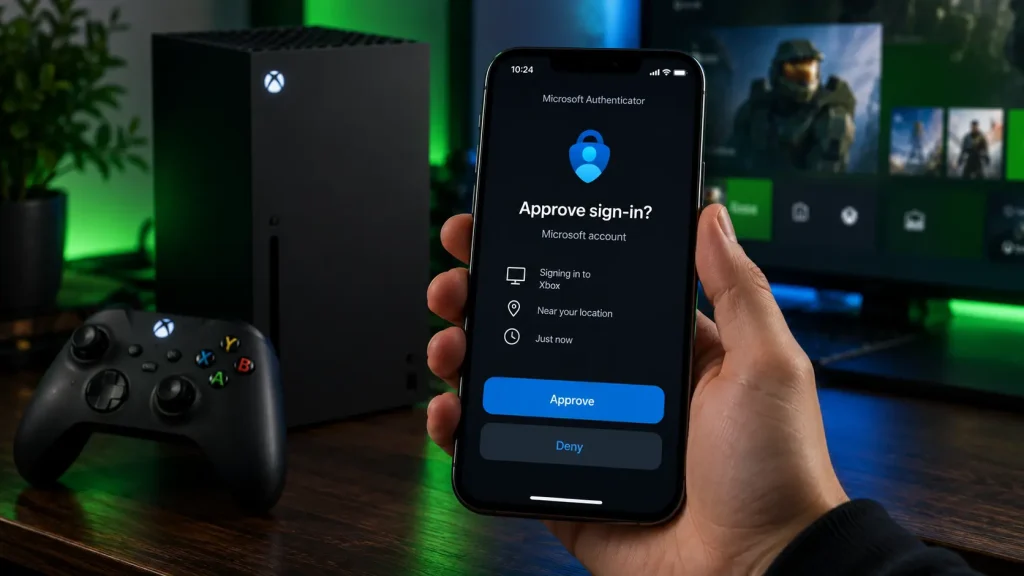
You can then use Microsoft Authenticator on that phone to approve sign-ins. The Xbox app is for your Xbox profile and services; the authenticator app handles account verification.
Choose Your Verification Methods
Authenticator app
Microsoft Authenticator is the simplest choice for most Xbox players. Follow the security dashboard’s instructions to add it; setup may ask you to scan a QR code. If your account offers another compatible authenticator app, you can use that option instead.
An authenticator app does not rely on a text message reaching your phone number, which avoids the specific risk of SIM swapping. Still, never approve a sign-in request you did not start or enter a code on a page opened from a suspicious message.
Backup email or SMS
Add a backup email address you can access independently of the Microsoft account you are securing. SMS may also appear as an option, but Microsoft is phasing it out for personal accounts, and some users can no longer add a new phone number. Do not rely on SMS as your only fallback.
Set up your backup method while you can still sign in normally. Losing access to your verification methods can make account recovery slow.
Save a Recovery Code
Microsoft account recovery codes contain 25 digits. Generate one after setting up your verification methods:
- Open account.microsoft.com/security > Manage how I sign in.
- Find Recovery code and select Generate a new code.
- Print it or write it down and keep it somewhere secure, separate from your phone.
You cannot view an existing recovery code later. If you generate a new one, the previous code stops working. The code can help you recover access, but it does not guarantee an immediate return to your account; some security changes may still involve a waiting period.
Xbox 360: Use an App Password if Sign-In Fails
Xbox 360 may not support the normal two-step verification prompt. If it says your password is incorrect after you enable 2FA, create an app password:
- In your Microsoft account, open Advanced security options.
- Find App passwords and select Create password.
- Enter the generated app password on your Xbox 360 instead of your regular Microsoft account password.
- Select Remember me on the console if you want it to retain the sign-in.
The App passwords section appears only when two-step verification is on. You do not need an app password for a normal Xbox Series X|S or Xbox One sign-in.
Fix Common Verification Problems
The email or SMS code does not arrive
Check that the masked email address or phone number on the sign-in screen matches yours. Look in your email’s spam folder, then try another verification method already connected to your account. Avoid repeatedly requesting new codes, as too many attempts can cause a temporary block.
The Authenticator notification does not appear
Open the authenticator app manually. Check your phone’s internet connection and notification permissions, then look for another verification option on the sign-in screen. Do not approve a request that appeared before you tried to sign in.
Will Xbox ask for a code every time it starts?
Usually, no. Microsoft may ask for extra verification when you sign in on a device it does not trust or when it needs to check your identity. Your console’s Sign-in, security & PIN preferences control local access to your Xbox profile; they are separate from account 2FA.
Security Setup Checklist
- Two-step verification is on for the Microsoft account used by your Xbox profile.
- Your authenticator app appears under Manage how I sign in.
- You have an accessible backup verification method.
- Your 25-digit recovery code is stored safely away from your phone.
- Your Xbox has a suitable PIN or sign-in preference if others use the console.
- Your Xbox 360 has an app password if its normal sign-in no longer works.
Before you finish, check Manage how I sign in once more. Make sure the authenticator and backup method listed there are ones you can actually access.

I’m Alex Mercer, a senior gaming and esports writer at GamingImba. I’ve been involved in gaming for as long as I can remember, and for more than a decade I’ve been writing about competitive play, industry trends, and the culture that grows around games.
My work focuses on esports, online gaming platforms, and how technology continues to shape the way people play, compete, and connect. I’m especially interested in meta shifts, balance changes, and the business decisions that influence modern games behind the scenes.
At GamingImba, I aim to break down complex topics in a way that’s clear, honest, and useful—whether that means analyzing a major tournament, exploring new gaming platforms, or looking at how player behavior evolves over time.
I follow global esports scenes closely, experiment with different games and mods in my free time, and enjoy digging into the details that most players notice but rarely stop to question.