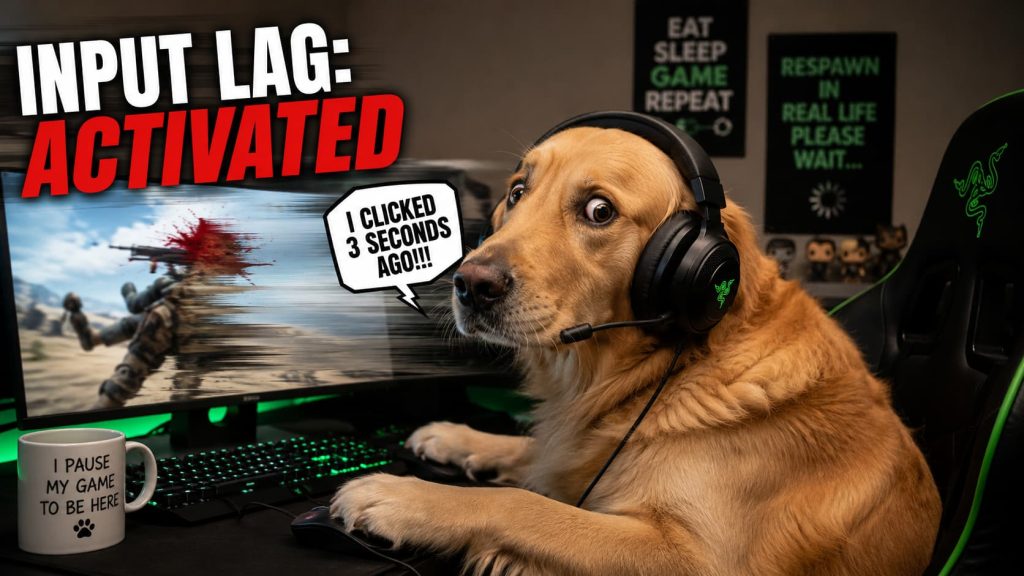
You know that weird moment when a game just feels… off?
You click, but the shot feels delayed. You press a movement key and your character reacts a fraction of a second later than expected. Maybe the game still runs, technically speaking, but something about it feels heavy and disconnected, like your inputs are traveling through syrup before reaching the screen.
That’s usually input lag.
A lot of players confuse it with low FPS or internet lag, but input lag is its own thing — and once you notice it, it becomes impossible to ignore. Suddenly every missed flick feels suspicious. Every death becomes “definitely not my fault.” At some point you start side-eyeing your monitor like it personally betrayed you.
The good news? Input lag can often be reduced dramatically without buying an absurdly expensive setup.
So What Exactly Is Input Lag?
Input lag is the delay between your action and the result appearing on screen.
You press a key. Move your mouse. Pull a trigger on a controller. The game receives the input, processes it, renders the frame, and finally shows the action on your display. That entire chain takes time, even if it’s tiny.
Normally, the process is fast enough that your brain perceives everything as instant. But when delays start stacking up — from your hardware, monitor, settings, or even background software — the game stops feeling responsive.
And responsiveness matters far more than many people realize.
A game with slightly worse graphics but snappy controls usually feels better to play than a beautiful game with sluggish input delay. That’s why competitive players obsess over refresh rates, frame timing, response times, and system optimization while casual players wonder why esports pros willingly play games that look like they came out in 2014.
Low FPS Makes Everything Feel Worse
One of the biggest causes of input lag is poor performance.
When your PC struggles to keep up, your inputs take longer to appear on screen because the system cannot render frames quickly enough. It’s not just about average FPS either. Frame drops, stuttering, and unstable frame pacing can all make controls feel inconsistent.
This is why a game running at a stable 120 FPS often feels smoother than one wildly bouncing between 70 and 140.
A lot of gamers max out every setting because “ultra” sounds emotionally important, but realistic puddle reflections are not helping you win gunfights. Ray tracing might look incredible, but if your GPU sounds like it’s trying to achieve flight, responsiveness is probably suffering.
In competitive games especially, stable performance matters more than cinematic visuals.
V-Sync: Helpful and Annoying at the Same Time
V-Sync has been confusing gamers for years because it solves one problem while creating another.
Its job is to eliminate screen tearing by syncing your frame rate with your monitor’s refresh rate. Visually, that can look cleaner. The downside is extra latency, because frames are buffered before being displayed.
For slower single-player games, this usually isn’t a huge issue. In fast-paced multiplayer games, though, even small delays become noticeable.
That’s why many players disable V-Sync completely.
Modern technologies like G-Sync and FreeSync are much better alternatives because they reduce tearing without introducing as much latency. If your monitor supports them, they’re usually worth enabling.
Your Monitor Might Be the Problem
People love upgrading GPUs while completely ignoring the thing they stare at for hours every day.
Your monitor has a huge impact on responsiveness. Refresh rate alone can completely change how games feel. Moving from 60Hz to 144Hz doesn’t just look smoother — it makes gameplay feel faster and more connected.
Once you get used to high refresh rates, going back to 60Hz feels strangely uncomfortable. Mouse movement suddenly looks delayed, camera motion feels choppy, and everything has that slightly “sticky” feeling.
Response time matters too. Some displays process images slowly, especially older TVs with heavy image enhancement features enabled. Gaming on certain televisions can introduce enough delay to make your character feel like they’re receiving instructions through customer support tickets.
If you’re using a TV, enabling Game Mode can reduce a surprising amount of latency instantly.
Wireless Isn’t Always the Villain
Wireless gaming gear used to have a terrible reputation for latency. These days, modern wireless mice and keyboards are much better than people think.
That said, wired devices still tend to offer the most stable and consistent performance. Cheap wireless peripherals, low battery levels, signal interference, or unstable Bluetooth connections can all add delay.
Gaming mice also rely on something called polling rate. A higher polling rate means the mouse sends updates to the PC more frequently. Most gaming mice now support 1000Hz polling, which helps inputs feel more immediate and precise.
Will casual players notice the difference instantly? Maybe not.
Will competitive players swear they can feel a 0.3 millisecond change? Absolutely.
Background Programs Love Ruining Performance
Sometimes the game isn’t the issue at all. Your PC is simply busy doing fifteen unnecessary things in the background.
Browsers, launchers, overlays, RGB software, recording apps, automatic updates, voice chat programs, and random startup processes all consume resources. Individually they may not seem like much, but together they can affect responsiveness.
Chrome alone occasionally behaves like it’s preparing tax reports, editing 4K movies, and mining cryptocurrency simultaneously.
Closing unnecessary applications before gaming can genuinely improve input responsiveness, especially on older systems or laptops.
Internet Lag vs Input Lag
This is where things get confusing.
Input lag happens locally between your hardware and display. Network lag comes from your internet connection and communication with game servers. They’re different problems, but they often feel similar during gameplay.
High ping, unstable Wi-Fi, or packet loss can make actions appear delayed online even if your local setup is perfectly responsive.
Ever shoot someone, clearly hit them, and then somehow lose the fight half a second later? That’s usually network latency stepping in to ruin your mood.
Using Ethernet instead of Wi-Fi helps a lot, especially in competitive games. Wi-Fi isn’t automatically bad, but wired connections are usually more stable and consistent.
Some Graphics Settings Add Delay
A surprising number of visual settings increase latency.
Motion blur, excessive post-processing, frame smoothing, aggressive upscaling, and certain frame generation technologies can all add extra delay depending on the game. Developers prioritize visuals differently, and sometimes “cinematic” gameplay translates to “your controls feel underwater.”
This is why professional players often use low or medium settings even on expensive PCs. Clear visibility and responsiveness matter more than realistic lighting bouncing off tiny rocks in the distance.
What Actually Helps?
Reducing input lag usually comes down to improving responsiveness across your entire setup rather than finding one magical fix.
A combination of small improvements often creates the biggest difference:
- stable FPS,
- lower graphics settings,
- high refresh rate monitors,
- wired peripherals,
- updated drivers,
- fewer background apps,
- and lower-latency display settings.
You don’t necessarily need a top-tier gaming PC to achieve responsive gameplay. A well-optimized mid-range setup often feels better than an expensive but poorly configured one.
Input lag is one of those problems that quietly affects everything. Aim feels worse. Movement feels slower. Reactions feel inconsistent. Even games you normally enjoy can start feeling strangely frustrating without an obvious reason why.
The good part is that responsiveness can usually be improved more easily than people expect.
Sometimes the solution is hardware. Sometimes it’s settings. Sometimes your PC simply needs fewer background apps trying to coexist peacefully while you’re gaming. Either way, once input lag is reduced properly, games immediately feel sharper, cleaner, and more satisfying to play.
And unfortunately, that also means you lose one of gaming’s greatest excuses forever.

I’m Alex Mercer, a senior gaming and esports writer at GamingImba. I’ve been involved in gaming for as long as I can remember, and for more than a decade I’ve been writing about competitive play, industry trends, and the culture that grows around games.
My work focuses on esports, online gaming platforms, and how technology continues to shape the way people play, compete, and connect. I’m especially interested in meta shifts, balance changes, and the business decisions that influence modern games behind the scenes.
At GamingImba, I aim to break down complex topics in a way that’s clear, honest, and useful—whether that means analyzing a major tournament, exploring new gaming platforms, or looking at how player behavior evolves over time.
I follow global esports scenes closely, experiment with different games and mods in my free time, and enjoy digging into the details that most players notice but rarely stop to question.