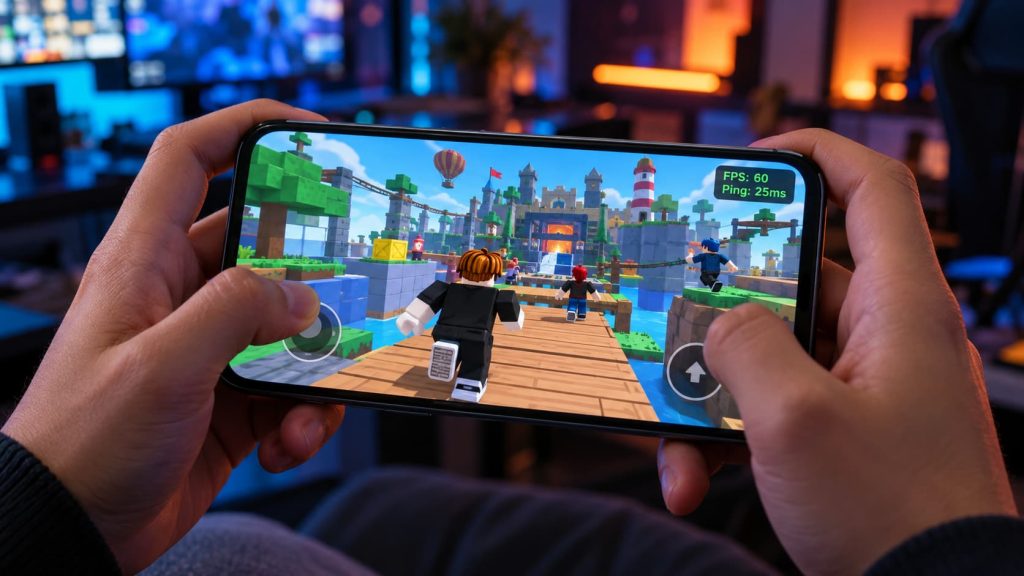
If Roblox runs smoothly for ten minutes and then starts to stutter, feel the back of your phone. Warm? You may be seeing thermal throttling: the device reduces performance as it heats up.
If the picture stays smooth but players jump across the screen, your character snaps backward, or you disconnect, look at the connection instead. Lowering graphics quality will not repair packet loss.
First, identify the type of lag
| What happens | Likely cause | First test |
| Camera movement looks choppy; effects cause frame drops | Low FPS or rendering load | Lower Roblox Graphics Quality |
| The game starts well, then slows as the phone gets hot | Heat and reduced performance | Remove the case, stop charging, lower graphics |
| Other players teleport or your position snaps backward | Network latency or packet loss | Try a different Wi-Fi network or mobile data |
| Only one Roblox experience lags | That experience or its server may be demanding | Try a simpler experience on the same device |
| Roblox closes or reloads, especially on an older phone | Memory pressure | Restart the device and check free storage |
Make one comparison before changing ten settings: play the same experience on the same phone for a few minutes using Wi-Fi, then test it on mobile data if your plan allows. If the problem follows the connection, start with the network. If it follows the phone everywhere, start with graphics and heat.
Lower Roblox graphics without guessing
While inside an experience, open the Roblox menu > Settings. Find Graphics Mode and Graphics Quality.
- Try Graphics Mode: Automatic first.
- If the game still stutters, switch to Manual.
- Move the Graphics Quality slider near the low end. Play for several minutes, including a busy area.
- Raise it one step at a time until frame drops return, then go back one step.
Avoid this common mistake: testing for 30 seconds in an empty area and pushing the slider back up. A budget phone may hold that setting briefly, then slow down as it heats up. Lower graphics reduce the device’s rendering workload; they do not lower your internet ping.
Android fixes
Clear the Roblox app cache when the app misbehaves
If Roblox loads unusually slowly or starts behaving strangely after an update, you can try clearing its cache:
- Close Roblox.
- Open Settings > Apps > Roblox > Storage. The labels vary by phone.
- Tap Clear cache, then reopen Roblox.
Clear cache rarely fixes consistently low FPS. It removes temporary files, and Roblox may need to download some content again. Do not tap Clear storage or Clear data by accident: those options reset app data and may sign you out.
Check battery and gaming modes
Open your phone’s Battery settings and turn off Battery Saver for a short comparison. If your phone offers per-app battery controls, check whether Roblox is restricted. The exact path depends on the manufacturer.
Then look for Game Mode, Game Booster, or a similarly named gaming panel. Try its balanced or performance setting if available, but keep an eye on heat. A more aggressive mode may feel faster at first and slow down sooner during a long session.
Leave Developer Options alone
Force 4x MSAA is not a Roblox lag fix. It is an anti-aliasing setting for certain OpenGL ES apps. It can increase graphics work rather than make a struggling phone faster, and it may have no useful effect on your Roblox setup.
The same goes for Background process limit. Setting it to “No background processes” can interfere with notifications, music, and normal app switching. It does not give Roblox a faster processor. If a specific background app is actively using resources, close or configure that app instead.
iPhone and iPad fixes
Test with Low Power Mode off
If the battery icon is yellow, Low Power Mode is on. Turn it off for a comparison under Settings > Battery; on newer iPhones, the control may be under Battery > Power Mode.
Low Power Mode reduces power use by limiting features and background activity. Its effect on Roblox varies by device and conditions, so test it rather than assuming it causes every frame drop.
Manage background activity sensibly
Check Settings > General > Background App Refresh if other apps are downloading or updating content while you play. You can limit refresh for apps you do not need.
Do not swipe every app away before each Roblox session. iOS suspends most unused apps, and repeatedly force-closing them does not improve overall performance. Close an app if it is frozen or you know it is actively doing heavy work.
Leave storage headroom
Go to Settings > General > iPhone Storage or iPad Storage. If the device is nearly full, offload or remove something you no longer use. Aim to keep at least 1 GB free to avoid storage-related slowdowns. More room is sensible if you regularly download games and updates.
Free storage is not the same as adding RAM. Clearing photos will not give Roblox more physical memory. If the app repeatedly closes on an older device, restart it, lower graphics, and try a less demanding experience.
Check heat before changing the network
If FPS falls after several minutes, stop playing while the phone cools. Remove a thick case, test without charging, and keep the device out of direct sunlight. Lower the graphics slider for the next run and compare how long it stays smooth.
A warm phone is not automatically faulty. The useful clue is repeatable slowdown as it warms up, especially when performance recovers after cooling.
Fix rubberbanding and high ping
Compare Wi-Fi bands
If your router offers both bands, test them in the same Roblox experience:
- 5 GHz can work well near the router, but its signal usually weakens sooner through walls.
- 2.4 GHz reaches farther, though nearby networks and devices can make it congested.
Neither band is automatically better. A weak 5 GHz signal can be worse than a strong 2.4 GHz connection. Move closer to the router, pause large downloads on other devices, and compare again.
If neighboring Wi-Fi networks are crowded, check whether your router supports automatic channel selection and whether it is enabled. You can also test another channel in the router’s settings. Change one setting at a time so you can restore the previous configuration if it works better.
Test without a VPN before changing DNS
Turn off your VPN for one test. Its route to the Roblox server may add latency or become unstable. If the connection improves immediately, you have a useful lead.
Changing DNS is less likely to help. Services such as Cloudflare 1.1.1.1 or Google DNS 8.8.8.8 can affect how quickly a server name is resolved when establishing a connection. They generally will not reduce ongoing in-game ping or fix packet loss once you are connected. If you test another DNS provider, record your original setting so you can restore it.
If several devices lag on the same Wi-Fi but Roblox works over mobile data, investigate the router or internet connection. If only one experience has trouble across multiple connections, the experience or its server may be the limiting factor.
Use Roblox MicroProfiler for stubborn frame drops
This is an optional advanced check. To inspect MicroProfiler data from a phone or tablet, you also need a computer on the same network.
On the mobile Roblox client, open its Settings menu and turn MicroProfiler on. On your computer, open the IP address and port shown by the mobile client in a web browser. Look for tall bars in the frame-time graph when the stutter occurs. At 30 FPS, a frame has roughly 33 milliseconds to finish; repeated frames taking much longer will feel choppy.
MicroProfiler is mainly a diagnostic tool. As a player, you cannot repair an experience’s scripts or asset design. You can use it to confirm recurring frame-time spikes, then lower graphics or report a reproducible problem to the experience’s creator. Turn it off when you finish testing.
Quick Diagnostic Checklist
- Older or budget Android phone: Lower graphics, test with Battery Saver off, and check whether FPS falls as the phone heats up.
- Older iPhone or iPad: Test with Low Power Mode off, keep storage space free, and lower graphics if Roblox repeatedly slows down or closes.
- Recent phone with smooth FPS but teleporting players: Compare Wi-Fi with mobile data and test without a VPN.
- Any device that lags in only one experience: Try another Roblox experience before changing system settings.

I’m Alex Mercer, a senior gaming and esports writer at GamingImba. I’ve been involved in gaming for as long as I can remember, and for more than a decade I’ve been writing about competitive play, industry trends, and the culture that grows around games.
My work focuses on esports, online gaming platforms, and how technology continues to shape the way people play, compete, and connect. I’m especially interested in meta shifts, balance changes, and the business decisions that influence modern games behind the scenes.
At GamingImba, I aim to break down complex topics in a way that’s clear, honest, and useful—whether that means analyzing a major tournament, exploring new gaming platforms, or looking at how player behavior evolves over time.
I follow global esports scenes closely, experiment with different games and mods in my free time, and enjoy digging into the details that most players notice but rarely stop to question.