Your game runs fine until you press Start Streaming. Then the frame rate drops, the recording stutters, or OBS warns that encoding is overloaded.
Start with 720p at 30 FPS. It is easier to improve a stable stream than to rescue a choppy 1080p one.
OBS Studio vs. Streamlabs vs. ShadowPlay
| Tool | Resource overhead | Customization | Best use on a weak PC |
| OBS Studio | Can be kept lean with simple scenes and few plugins | Extensive control over capture, encoding, and audio | Streaming or recording when performance needs careful tuning |
| Streamlabs Desktop | Integrated widgets and creator features can add background RAM and CPU load | Convenient built-in tools | A PC with enough spare resources for those features |
| NVIDIA ShadowPlay / NVIDIA app | Uses supported NVIDIA hardware encoding, though recording still has a performance cost | Limited scene controls compared with OBS | Simple gameplay recording and instant replays |
| AMD Adrenalin Record | Uses supported Radeon capture hardware; impact varies by GPU and game | Simpler controls than OBS | Straightforward gameplay recording on a compatible AMD GPU |
For a struggling PC, I would start with plain OBS Studio. Streamlabs is convenient, but its extra features give a low-memory system more to run. The difference depends on your scenes and sources, so keep OBS simple too. Filling it with animated overlays and browser widgets defeats the point.
If you only need game footage, test ShadowPlay or AMD Adrenalin Record. You may not need a full streaming setup at all.
Diagnose the lag before changing settings
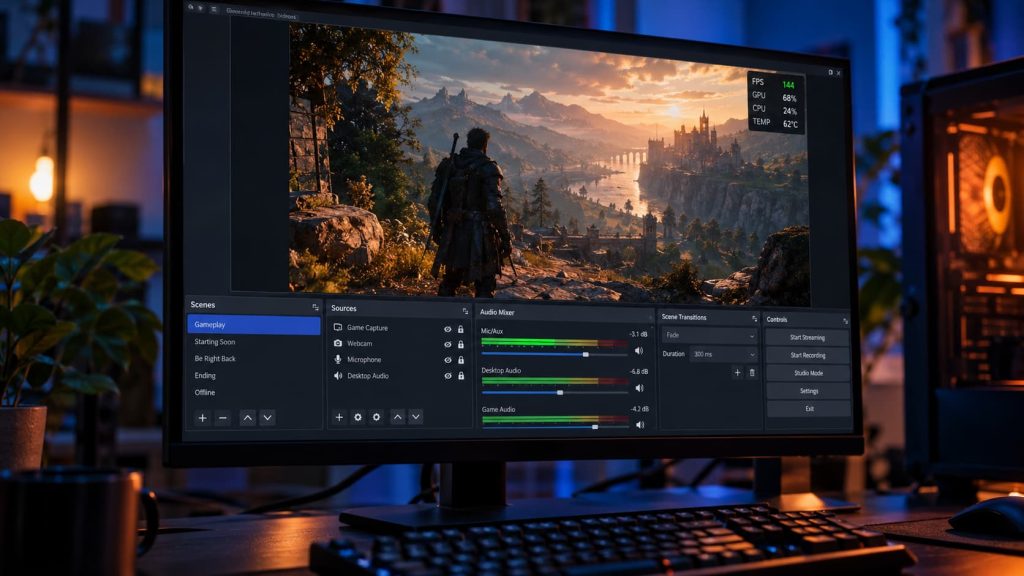
In OBS, open View → Stats during a test. Watch these three counters:
- Frames missed due to rendering lag: OBS cannot draw the scene quickly enough. Look at GPU load, game settings, and demanding sources.
- Skipped frames due to encoding lag: The encoder cannot finish frames in time. Reduce its workload or try another encoder.
- Dropped frames (network): OBS cannot send the stream reliably. Check your connection and streaming bitrate.
Open Task Manager → Performance as well. Test during actual gameplay, preferably in a busy area. An empty game menu will make almost any setup look healthy.
Step 1: Give OBS some room to work
- Use Game Capture when it works reliably with your game.
- Start with a scene containing only the game and the audio sources you need. Add overlays after you have a smooth test.
- Right-click the OBS preview and switch off Enable Preview while playing. Switch it back on when arranging the scene.
- Cap the game’s frame rate if GPU usage stays near 100%. Try 60 FPS first, or a lower cap if rendering lag continues.
That last step matters. An uncapped game can take nearly all the GPU time available, leaving OBS struggling to draw even a modest 720p scene.
Step 2: Set Settings → Video
For a 1080p monitor, use this starting configuration:
| Setting | Starting value | What it does |
| Base (Canvas) Resolution | 1920×1080 | Gives you a workspace matching your 1080p screen or game |
| Output (Scaled) Resolution | 1280×720 | Reduces the size of the video you produce |
| Downscale Filter | Bicubic | Balances sharpness and processing cost |
| Common FPS Values | 30 | Cuts the number of frames OBS must process compared with 60 FPS |
Base resolution is the workspace where you position sources. Output resolution is the size of the finished video. You can arrange a scene on a 1080p canvas while streaming or recording at 720p.
Start with Bicubic. Try Lanczos later if the output is stable and you want a sharper downscale. If the system is right on the edge, Bilinear is another setting worth testing. Filter changes are usually smaller fixes than lowering resolution, reducing FPS, or freeing up GPU capacity.
If 720p30 still stutters, try 960×540 at 30 FPS.
Step 3: Set Settings → Output → Streaming
Change Output Mode to Advanced. For a first 720p30 test, set:
- Encoder: A supported NVIDIA NVENC H.264, AMD HW H.264/AMF, or Intel Quick Sync H.264 encoder if OBS offers one. Otherwise, use x264.
- Rate Control: CBR.
- Video Bitrate: Start around 3,500 Kbps. A practical test range is 3,000-4,500 Kbps, subject to your streaming platform’s rules and your upload connection.
- Keyframe Interval: 2 seconds, unless your platform requests something else.
- Audio Bitrate: 128 Kbps AAC for stereo audio.
- If using x264: Start with the veryfast CPU Usage Preset. Try superfast if OBS reports encoding lag.
Treat the bitrate as a starting point, not a quality guarantee. A fast-moving game may look blocky at 3,500 Kbps, while an unstable upload may require a lower setting. Check the current requirements of the platform you use.
Hardware encoding or x264?
x264 works on the CPU. If your processor is already busy running the game, that extra load can cause stutter. A supported hardware encoder is usually the better first test on a CPU-limited PC.
With x264, superfast uses less CPU than veryfast, at the cost of some picture quality at the same bitrate. Moving to a slower preset makes the CPU work harder. Do not do that while troubleshooting overload.
Hardware encoding still needs system resources. If you switch to NVENC or AMF and rendering lag remains high, reduce the game’s GPU load. Lowering stream bitrate alone is unlikely to fix that problem.
Step 4: Set Settings → Output → Recording
In Advanced Output Mode, open the Recording tab:
- Recording Format: Choose MKV as a safe default. An interrupted MKV recording is generally recoverable, and you can use File → Remux Recordings if your editor needs MP4. Hybrid MP4 is another resilient option if it is available in your OBS installation and suits your editing workflow.
- Encoder: For recording alone, start with a supported hardware encoder. If you are streaming and recording simultaneously, select Use stream encoder for the first test so OBS records the stream output without setting up a separate video encode.
- Quality control for a separate recording: When using a separate hardware encoder, choose its quality-based rate control, such as CQP for NVENC or AMD, or ICQ for supported Intel options. Start around 20-23, then inspect the file. Lower values generally mean better quality and larger files.
- Recording path: Choose a drive with enough free space. Check disk activity if the local file stutters while OBS shows little rendering or encoding lag.
Use stream encoder is the conservative choice when doing both jobs on a weak PC. It also means your local recording has the stream’s resolution and compression. Once that works, you can test a separate, higher-quality recording.
If it still stutters
| What you see | What to try next |
| The game slows down and rendering lag rises | Cap game FPS, lower in-game graphics, simplify the scene, and test OBS with Run as administrator on Windows |
| The game feels fine but encoding lag rises | Try a supported hardware encoder, switch x264 from veryfast to superfast, or reduce output resolution |
| The stream buffers and network dropped frames rise | Lower streaming bitrate and check upload stability |
| Only the local recording stutters | Check free disk space and disk activity; test Use stream encoder if recording while live |
| One scene causes the problem | Temporarily remove its browser sources, animations, and video backgrounds |
Run as administrator is especially worth testing for rendering lag on Windows: close OBS, right-click its shortcut, and select Run as administrator. Compare the Stats counters during the same part of the game.
Final Sanity Check
Make a five-minute recording of real gameplay. Include a busy fight or another demanding moment, and speak into your microphone. Keep OBS Stats and Task Manager open during the test, then watch the finished file.
If 720p30 is smooth, save it as your reliable baseline. Raise the resolution or FPS one setting at a time, and keep the higher setting only if the next test stays clean.

I’m Alex Mercer, a senior gaming and esports writer at GamingImba. I’ve been involved in gaming for as long as I can remember, and for more than a decade I’ve been writing about competitive play, industry trends, and the culture that grows around games.
My work focuses on esports, online gaming platforms, and how technology continues to shape the way people play, compete, and connect. I’m especially interested in meta shifts, balance changes, and the business decisions that influence modern games behind the scenes.
At GamingImba, I aim to break down complex topics in a way that’s clear, honest, and useful—whether that means analyzing a major tournament, exploring new gaming platforms, or looking at how player behavior evolves over time.
I follow global esports scenes closely, experiment with different games and mods in my free time, and enjoy digging into the details that most players notice but rarely stop to question.