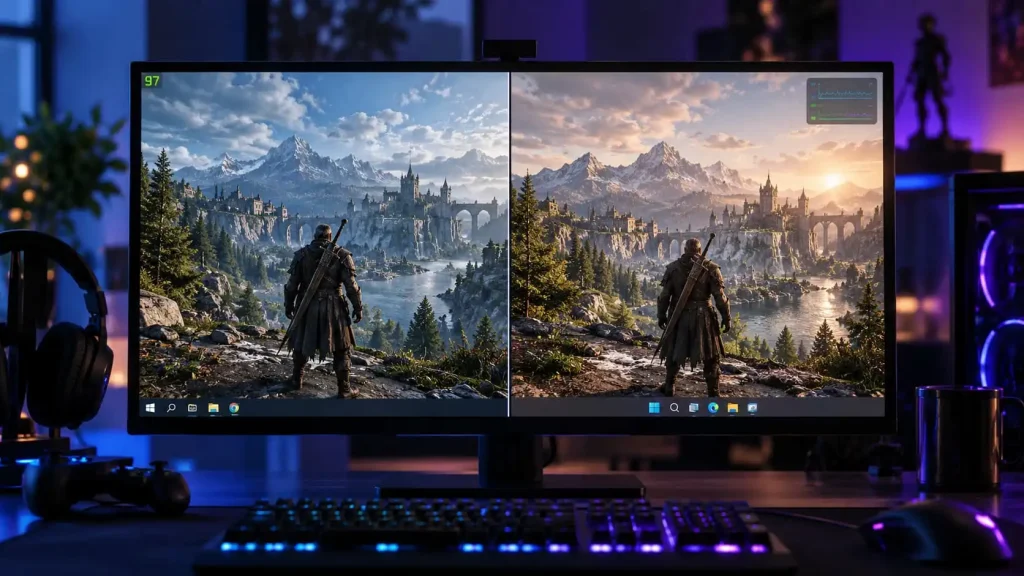
An Intel CPU with P-cores and E-cores gives Windows a harder scheduling job than an older processor with identical cores. That is a good reason to consider Windows 11. It is not a promise of higher FPS in every game.
Start with your hardware. Then test the games you actually play.
Where the operating systems differ
Intel Thread Director and hybrid CPUs
On compatible Intel hybrid processors, Thread Director gives Windows information about running workloads. The scheduler uses it to decide which tasks belong on performance cores (P-cores) and which can run on efficiency cores (E-cores).
Windows 10 can run these processors. Windows 11 makes fuller use of Thread Director, which may help when a game competes with voice chat, recording software, and background tasks. A game that already runs well on the right cores may show little difference.
Check your exact CPU model. Not every recent Intel processor has the same P-core and E-core layout.
Ryzen and 3D V-Cache
Ryzen has a different scheduling issue. On a single-chiplet X3D processor, Windows does not have to choose between a chiplet with extra cache and one without it. On supported dual-chiplet X3D processors, where the game runs can affect performance.
Install the current AMD chipset driver and leave Game Mode on for your first test. Those are sensible starting conditions, not proof that every game will land on the best chiplet. If one title performs unusually badly, investigate that title before assuming Windows 10 or 11 is the cause.
DirectStorage: does it matter yet?
For most games, DirectStorage alone is not a reason to upgrade to Windows 11. A game must implement it, and any benefit depends on how the game loads assets, the storage device, and where its bottleneck lies.
DirectStorage works with compatible games on both Windows 10 and Windows 11. Windows 11 has additional storage optimizations, but installing it will not automatically shorten every loading screen. DirectStorage is more relevant to loading and asset streaming than to average FPS.
If your games already load quickly and run smoothly from an SSD, spend your testing time elsewhere first.
Auto HDR and windowed games
Auto HDR changes how supported SDR games appear on a suitable HDR display. It is a picture feature, not an FPS upgrade. If your monitor does not support HDR, it is irrelevant to this decision.
Windows 11 also offers Optimizations for windowed games for compatible DirectX 10 and 11 titles. In windowed or borderless mode, it can reduce presentation latency and enable supported features such as variable refresh rate and Auto HDR. It is worth testing if you play in borderless mode. Do not assume it will change the behavior of every game or graphics API.
Measure frame consistency, not just average FPS
| Measure | What it tells you | What to watch for |
| Average FPS | Overall performance during the run | A higher average can still hide stutter |
| 1% low FPS | A summary of the slowest 1% of frame times, expressed as an FPS value | Large drops between repeated runs |
| Frame-time graph | When individual frames arrive late | Spikes during fights, traversal, or camera movement |
| Input latency | Delay between your action and its visible result | FPS alone cannot establish a precise latency difference |
A five-FPS gain means little if the game still hitches when you turn a corner. Check the frame-time graph alongside the averages and 1% lows. A single severe stall may not be obvious from a summary number.
Use a repeatable test. For example, play the same CS2 replay segment or run the same Cyberpunk 2077 route at least three times per setup. Keep the resolution, graphics settings, driver version, FPS cap, and background apps consistent. Do not compare a fresh first launch, while shaders are compiling, with a warmed-up run.
What about idle RAM and CPU use?
Windows 11 may show more processes or a different memory footprint at idle than Windows 10. There is no dependable universal figure for how much extra RAM it uses. Drivers, security features, installed apps, updates, and cached memory all affect Task Manager.
To compare your own setups:
- Restart and wait a few minutes after signing in.
- Let Windows Update and game launchers finish their work.
- Note Memory in use, Available memory, and sustained CPU activity in Task Manager.
- Launch the game and check whether memory pressure or disk paging appears.
Unused RAM being used for cache is not automatically bad. On an 8 GB PC, though, a browser, launcher, voice chat, and modern game can leave little headroom. Removing unnecessary startup apps may help more than reducing the idle process count.
VBS and Memory integrity
Virtualization-based Security (VBS) uses an isolated environment to protect parts of Windows. Memory integrity, also called HVCI, is a security feature built on VBS that helps protect kernel-mode code. Both Windows 10 and Windows 11 can use it.
It can carry a performance cost, especially on older processors. The size of that cost depends on the hardware and workload. Treat it as a setting to measure, not one to disable automatically.
- Check HVCI at Windows Security > Device security > Core isolation details > Memory integrity.
- Remember that this switch shows Memory integrity, not necessarily the state of every VBS component.
- If you want to measure its effect, run the same game test with it on and off. Restart when prompted and change nothing else.
- Leave it on if the difference is negligible to you. Turning it off removes a security protection.
For a Windows 10 versus Windows 11 benchmark, record the security settings on both installations. Otherwise, you may attribute a VBS difference to the operating system itself.
Gaming tweaks worth testing on either OS
Check drivers and refresh rate first
Install the appropriate chipset and GPU drivers. Then verify your monitor’s refresh rate under Settings > System > Display > Advanced display on Windows 11, or the corresponding display page in Windows 10.
Keep in-game upscaling, frame generation, V-Sync, resolution, and FPS limits identical during comparisons. One unnoticed graphics setting can overwhelm a small OS difference.
Start with Game Mode on
Find Settings > Gaming > Game Mode and leave it On for your initial tests. Try Off only if a specific game, capture tool, or other part of your setup behaves poorly. It is not a guaranteed FPS boost.
On a dual-chiplet Ryzen X3D system, check the AMD chipset driver before changing Game Mode or removing gaming components. Test the troublesome game afterward rather than assuming one switch fixed chiplet placement.
Test HAGS both ways if you have a problem
Hardware-accelerated GPU scheduling (HAGS) moves much of GPU scheduling work to supported GPU hardware. Its effect on frame rates and latency varies with the GPU, driver, and game.
If your hardware exposes the option, look under Settings > System > Display > Graphics > Default graphics settings. Record a baseline, change HAGS, restart, and repeat the test. Restore the setting that works better if you see stutter or capture issues.
Do not change HAGS, the GPU driver, and several in-game settings at the same time. You will not know what caused the result.
Remove unwanted startup apps carefully
Open Task Manager > Startup apps. Disable launchers, chat apps, update helpers, RGB software, or monitoring tools that you do not need running at login. Uninstall unwanted programs through Settings > Apps > Installed apps.
Be careful with Xbox components. If you use PC Game Pass, Xbox sign-in, Game Bar, or its capture tools, deleting related services can break features you rely on. If you simply do not use background recording, switch that capture feature off through Windows settings.
You can review optional diagnostic sharing under Settings > Privacy & security > Diagnostics & feedback in Windows 11, or Settings > Privacy > Diagnostics & feedback in Windows 10. Make that choice for privacy. Do not expect it to deliver a meaningful FPS increase.
Avoid one-click debloat scripts
A clean install can establish a useful baseline: Windows updates, chipset and GPU drivers, one game, and your measurement tools. Test that setup before reinstalling every launcher and utility.
Scripts that disable security, updates, scheduled tasks, and services in one pass make later problems harder to diagnose. Remove the apps you recognize first. Measure the result.
Which Windows should you use?
| Your hardware or situation | Practical choice |
| Intel CPU with P-cores and E-cores | Favor Windows 11 for its fuller Thread Director support, then benchmark your main games. |
| Dual-chiplet Ryzen X3D | Use a current OS and the proper AMD chipset driver. Test game behavior before blaming Windows scheduling. |
| Older four-core CPU with 8 GB RAM | Compare your actual games and memory pressure. Trim startup apps first; neither OS guarantees better 1% lows. |
| PC that cannot officially run Windows 11 | Do not force an unsupported upgrade for a speculative FPS gain. Check whether it qualifies for Windows 10 Extended Security Updates. |
| Already on Windows 11 with smooth games | Stay with the working setup. Change individual settings only when you have a problem to measure. |
Standard Windows 10 support ended on October 14, 2025. Eligible consumer devices can enroll in Extended Security Updates through October 12, 2027. That provides specified security updates during the transition, not the full set of fixes, features, and technical support that standard support provided.

I’m Alex Mercer, a senior gaming and esports writer at GamingImba. I’ve been involved in gaming for as long as I can remember, and for more than a decade I’ve been writing about competitive play, industry trends, and the culture that grows around games.
My work focuses on esports, online gaming platforms, and how technology continues to shape the way people play, compete, and connect. I’m especially interested in meta shifts, balance changes, and the business decisions that influence modern games behind the scenes.
At GamingImba, I aim to break down complex topics in a way that’s clear, honest, and useful—whether that means analyzing a major tournament, exploring new gaming platforms, or looking at how player behavior evolves over time.
I follow global esports scenes closely, experiment with different games and mods in my free time, and enjoy digging into the details that most players notice but rarely stop to question.