You press a button, but your character reacts a split second too late. Aiming feels heavier than it should, dodging becomes inconsistent, and even menu navigation can start to feel off. Before blaming your controller or replacing hardware, it makes sense to figure out where that delay is actually coming from.
Controller input lag is not always caused by the controller itself. The delay can come from the wireless connection, the game, the PC or console, the display, or a combination of several smaller issues. That is why two players can use the same controller and get very different results.
This guide walks through the most common causes of controller input lag and shows how to fix them step by step, helping you improve responsiveness without wasting money on the wrong upgrade.
What causes controller input lag?
When you press a button, the controller has to register the input, send it to the system, let the game process it, and then wait for the next rendered frame to appear on the display. Any delay in that chain can make the controls feel sluggish. In practice, what people describe as “controller lag” is often a broader input-to-screen latency problem.
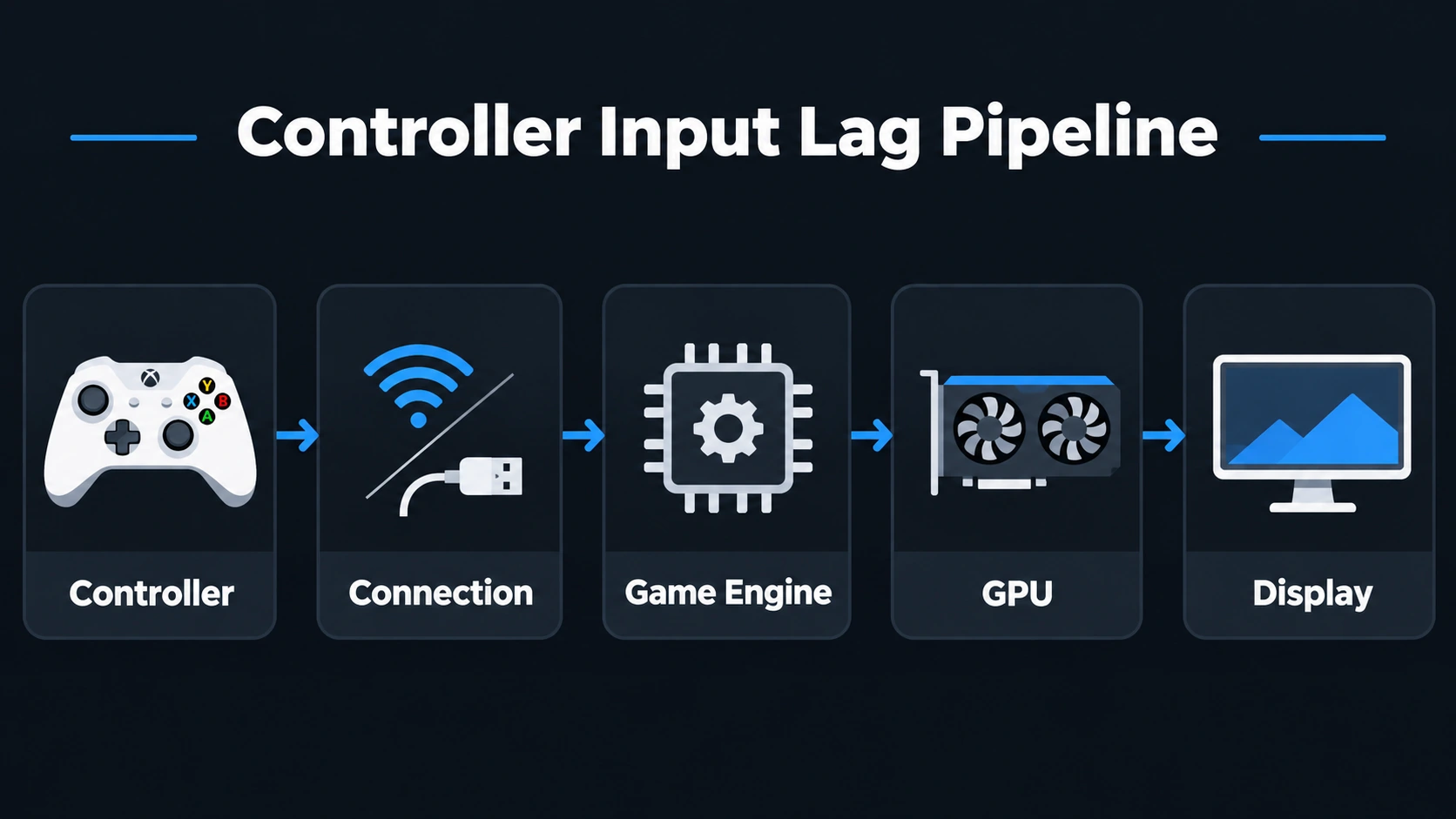
The most common causes include unstable Bluetooth connections, low frame rates, V-Sync-related latency, heavy TV image processing, outdated controller firmware, large deadzones, conflicting controller software, and poor system configuration. Sometimes the controller is not the main problem at all.
It also helps to separate consistent delay from inconsistent delay. A setup with a small but stable delay can still feel playable, while a setup with random latency spikes, stutters, or missed inputs often feels much worse.
Start by identifying the symptom
Before changing settings, it is worth narrowing down what kind of delay you are dealing with. If the problem only appears in one game, that points in a different direction than a delay that affects every title and every menu.
Use the table below as a quick diagnosis guide.
| What you notice | Possible cause | What to test first |
| Delay only when using Bluetooth | Wireless interference or adapter issues | Try USB |
| Delay in every game | Display or system latency | Check refresh rate and display mode |
| Delay in one game only | Game settings or software conflict | Check in-game options and Steam Input |
| Buttons feel fine, but aiming feels slow | Deadzone or aim settings | Check controller sensitivity settings |
| Inputs occasionally freeze or skip | Unstable connection or battery issue | Re-pair controller, charge battery |
| Delay only online | Network or server lag | Test offline |
| Delay increases during heavy scenes | FPS drops or GPU latency | Lower graphics settings |
| Delay only on a TV | Display processing | Turn on Game Mode |
| Inputs register twice | Conflicting controller software | Check remapping applications |
A quick offline comparison test can save a lot of time. Pick a game with a training area or a simple action like jumping, firing, or opening a menu. Test it with your normal setup, then repeat it with a USB cable if your controller supports wired data. If the delay disappears, the connection is a likely cause. If it stays the same, look further down the chain.
If possible, repeat the same test with another controller or a keyboard and mouse. Keep your game, display, and graphics settings unchanged. If both input devices feel delayed, the controller is less likely to be the main problem.
1. Check your controller connection first
The controller connection is one of the easiest things to test, and it often helps narrow down the problem quickly. If you normally play over Bluetooth, connect the controller directly with a USB data cable and repeat the same actions in the same game. Avoid USB hubs and docking stations during the initial test.
Many players assume wired is always faster, but that is not universally true. Some controllers perform better over Bluetooth, some over USB, and some over dedicated 2.4 GHz wireless receivers. Latency depends on the controller’s design, firmware, and implementation, not just the connection type on paper.
| Connection type | Advantages | Potential problems |
| Wired USB | Stable connection, less exposure to wireless interference | Damaged cables, faulty ports, model-specific latency limitations |
| Bluetooth | Convenient and widely supported | Interference, adapter issues, inconsistent latency |
| 2.4 GHz wireless | Often low latency and good stability | Receiver placement, interference, model-specific performance |
| Xbox Wireless | Dedicated protocol for compatible controllers | Requires compatible hardware |
Testing USB is useful because it helps rule out wireless instability. Just make sure you are using a data cable, not a charge-only cable. A charging cable may provide power without actually switching your controller to wired communication.
2. Fix Bluetooth controller input lag
If the controller feels fine over USB but laggy over Bluetooth, the issue is probably not the buttons or sticks. It is more likely related to the wireless connection or its associated software. Bluetooth shares the 2.4 GHz spectrum with many other devices, so interference can affect performance, especially on desktop PCs.
Start with the simple fixes. Fully charge the controller or replace the batteries, move closer to the system, and disconnect unused Bluetooth devices. If you use a USB Bluetooth dongle, move it away from USB 3.0 devices and external drives, since nearby USB 3.0 equipment can generate interference in the 2.4 GHz frequency band. A short USB extension cable can help by increasing the distance between the receiver and the source of interference.
If your motherboard came with external Wi-Fi antennas, connect them even if you use Ethernet. On many boards, those antennas help Bluetooth performance too. It is an easy fix that often gets overlooked.
If you are using a 2.4 GHz Wi-Fi connection, switching to 5 GHz or 6 GHz, where supported, may also help reduce wireless congestion.
Update your Bluetooth drivers
If the problem started after a Windows update, check the Bluetooth driver in Device Manager > Bluetooth and look for an updated version from the official motherboard, laptop, or adapter manufacturer. Windows Update may also provide compatible driver updates.
If your controller regularly disconnects or becomes unresponsive after periods of inactivity, check whether your Bluetooth adapter has a Power Management tab in Device Manager. If available, temporarily disable the option that allows Windows to turn off the device to save power and test again.
Not every Bluetooth adapter exposes this setting, and there is no need to disable power management across all your USB devices.
3. Update your controller firmware
Firmware updates can improve connectivity, stability, and controller behavior. They do not magically eliminate lag, but they can fix bugs that cause inconsistent performance.
For Xbox controllers, use the Xbox Accessories app on Windows or the accessories section on the console. For PS5 DualSense and DualSense Edge controllers, update through the PlayStation system settings or Sony’s PlayStation Accessories PC application.
Third-party controllers like 8BitDo, GameSir, and Flydigi often have their own firmware tools, and some also update the wireless receiver separately. Always make sure the firmware is intended for your exact controller model and hardware revision.
If the controller behaves strangely even after an update, try resetting it and pairing it again, following the manufacturer’s instructions, before assuming the hardware is defective.
4. Check Steam Input and controller software conflicts
On PC, overlapping controller software can cause unexpected problems. Steam Input, DS4Windows, reWASD, and native game support can all interact in ways that create conflicts. The result may not look like classic input lag, but it can feel like it.
If a game feels delayed only in Steam, try disabling Steam Input for that title and test again. You can find this option under Steam Library > Game Properties > Controller > Disable Steam Input, within the per-game controller override settings. Restart the game after changing the configuration.
If the game stops recognizing the controller, turn Steam Input back on. Some games rely on it for compatibility. Disabling it is a troubleshooting step, not a universal latency optimization.
It is also a good idea to close extra controller tools temporarily and test with only one active layer of input handling. If the delay disappears, re-enable the programs one at a time until you find the conflict.
Disconnecting additional controllers, steering wheels, or flight sticks may also help if a game is having trouble identifying the correct input device.
5. Make sure your display is running at the correct refresh rate
Sometimes the controller is working normally, but the display is showing updates less often than it should. This is especially common on high-refresh-rate monitors that accidentally run at 60 Hz.
In Windows 11, go to Settings > System > Display > Advanced display and confirm your monitor is set to its proper refresh rate. If you have a 144 Hz, 165 Hz, or 240 Hz gaming monitor, make sure the correct value is selected.
You can also use our Monitor Refresh Rate Test to check the approximate refresh cadence available to your browser.
The difference between refresh rates is more significant than many players realize.
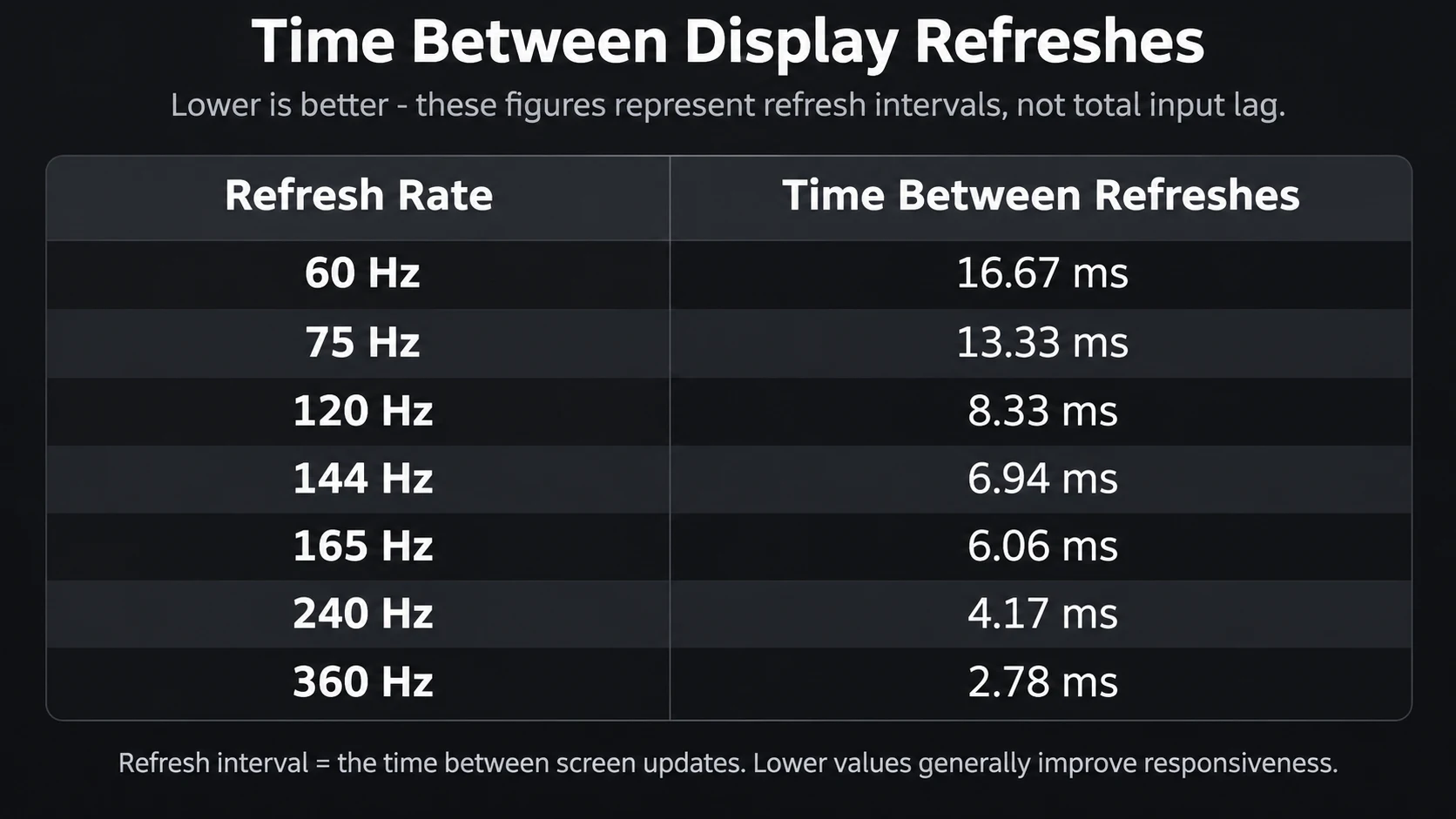
Higher refresh rates do not automatically remove controller lag, but they reduce the time between screen updates, which can improve overall responsiveness. That is why a game can feel much better at 120 Hz or 144 Hz even without changing the controller.
It is also important to remember that monitor response time and total display latency are not the same thing. A screen advertised as “1 ms” is not necessarily giving you just 1 ms of total input delay. Pixel response time describes how quickly pixels change, while display input lag relates to how long the display takes to present an incoming signal.
6. Turn on Game Mode if you play on a TV
TVs can be a major source of input lag because they often apply extra image processing designed for movies and shows. Features like motion smoothing, noise reduction, edge enhancement, and post-processing filters can add noticeable delay.
If you play on a TV, open the picture settings and enable Game Mode or the equivalent gaming preset. Then disable unnecessary motion and enhancement features if they remain active. On some televisions, this alone can make a bigger difference than changing the controller.
If your TV supports HDMI gaming features like Auto Low Latency Mode (ALLM) or higher refresh rates, make sure you are using the correct HDMI input and that the appropriate gaming mode is active.
Independent TV input lag measurements from RTINGS demonstrate how much display latency can vary depending on refresh rate, resolution, and picture processing settings.
7. Improve frame rate and reduce rendering latency
If a game runs poorly, the controls can feel delayed even when the controller itself is fine. A drop in frame rate means the system is taking longer to generate new frames, which can affect responsiveness.
This is why some games feel okay in menus but heavy and sluggish during actual gameplay. If you notice that the delay gets worse during demanding scenes, lower the graphics settings and test again. Prioritize frame rate stability over visual extras when responsiveness matters.
A game running at 30 FPS produces a new frame approximately every 33.33 ms. At 60 FPS, that interval drops to 16.67 ms, while 120 FPS reduces it to approximately 8.33 ms. These are frame intervals rather than measurements of total input lag, but they help explain why low frame rates can make controls feel less responsive.
Check V-Sync and variable refresh rate settings
V-Sync prevents screen tearing by synchronizing frame presentation with the display, but it can also add latency depending on the game and setup. Try disabling V-Sync temporarily and compare how the game feels.
If your system supports FreeSync or G-SYNC, experiment with a variable refresh rate setup and a suitable FPS cap. A properly configured VRR setup can help balance visual smoothness and responsiveness without excessive screen tearing.
Enable available latency reduction technologies
If available, test low-latency features like NVIDIA Reflex, AMD Radeon Anti-Lag, or in-game Anti-Lag 2. These technologies can help reduce rendering-related delay, particularly in GPU-bound scenarios. They will not, however, fix an unstable controller connection or a hardware fault.
8. Be careful with Frame Generation
A game can show a high FPS number and still feel less responsive than expected. That often happens with Frame Generation. Technologies like DLSS Frame Generation and AMD FSR Frame Generation can make gameplay look smoother by inserting additional frames, but those inserted frames are not equivalent to new input-driven game simulation updates.
A game showing 120 FPS with Frame Generation may not feel as responsive as a game rendering 120 FPS without it. If aiming or camera movement feels heavy, disable Frame Generation and compare the result. You can still use ordinary DLSS or FSR upscaling if needed to improve your underlying frame rate.
Frame Generation is not necessarily a bad feature. However, when troubleshooting input lag, it is important to distinguish between visual smoothness and actual input responsiveness.
9. Check deadzones and aim settings
Not every “lag” complaint is a timing issue. Sometimes the controller is reacting normally, but the game requires too much stick movement before it registers the input. That is a deadzone problem.
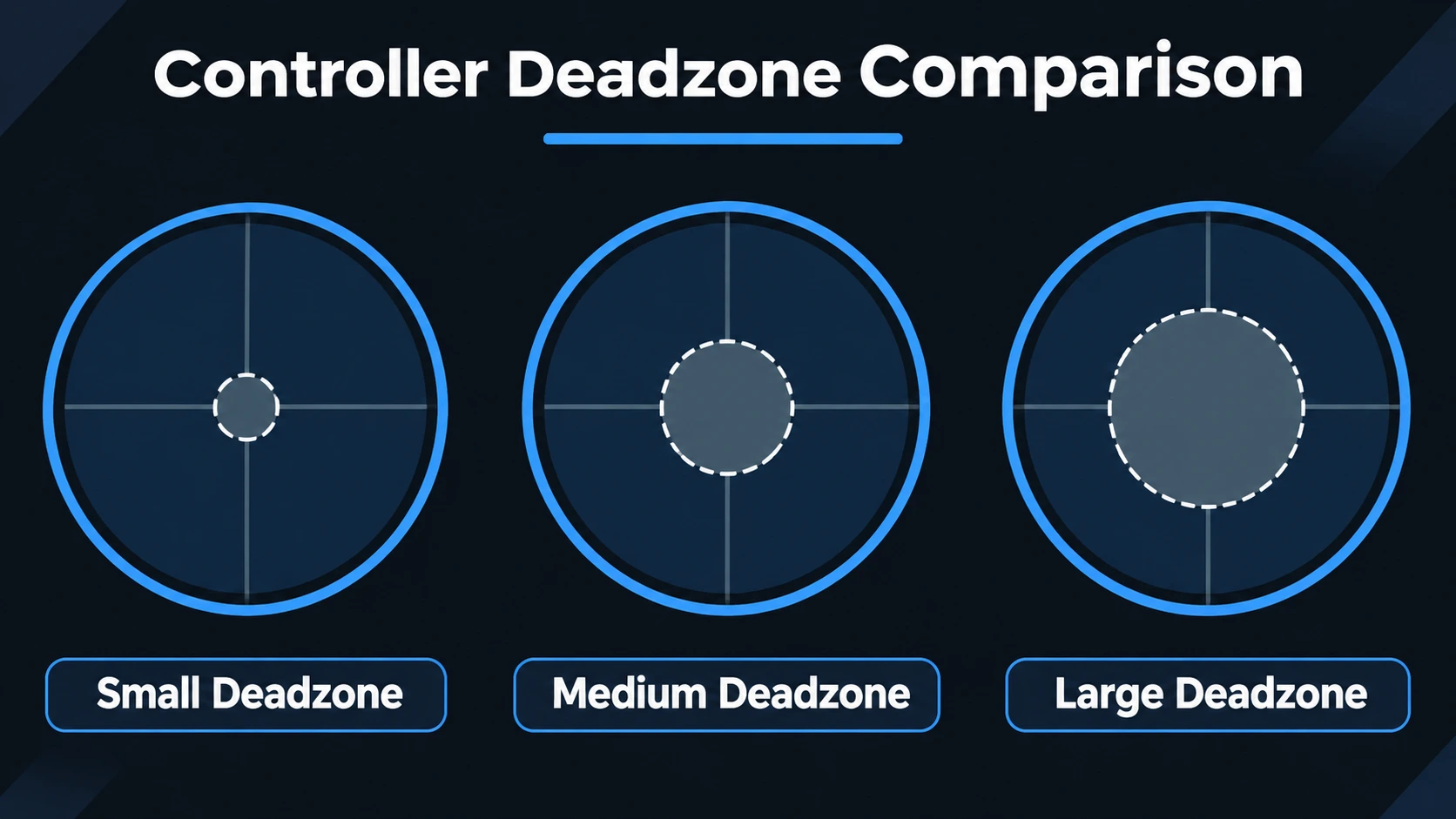
Large inner deadzones, heavy aim acceleration, aggressive smoothing, or an unusual response curve can make aiming feel slow and disconnected. If buttons feel immediate but camera movement feels delayed, check the controller settings in the game before assuming you have true latency.
Reduce the inner deadzone gradually until movement becomes more responsive, then raise it slightly if you start seeing unwanted drift. This can make a noticeable difference in shooters and games with fine aiming.
Other settings worth checking include aim acceleration, stick response curves, camera smoothing, ADS sensitivity, and aim assist behavior. Change one setting at a time so you can identify which adjustment actually improves your experience.
10. Understand polling rate without overestimating it
Polling rate matters, but it is often misunderstood. It refers to how frequently input reports are exchanged, usually expressed in Hz. A higher polling rate can reduce the waiting time associated with input reports, but it does not tell the full story of real-world latency.
A controller running at 125 Hz has an 8 ms report interval, while 1,000 Hz drops that interval to 1 ms. That sounds dramatic, but a 1,000 Hz polling rate does not mean your controller has only 1 ms of input latency. Internal processing, connection quality, game engine behavior, and display latency still matter.
| Polling rate | Report interval | Theoretical average report wait |
| 125 Hz | 8 ms | 4 ms |
| 250 Hz | 4 ms | 2 ms |
| 500 Hz | 2 ms | 1 ms |
| 1,000 Hz | 1 ms | 0.5 ms |
| 2,000 Hz | 0.5 ms | 0.25 ms |
| 4,000 Hz | 0.25 ms | 0.125 ms |
| 8,000 Hz | 0.125 ms | 0.0625 ms |
These are theoretical values assuming regular report intervals and uniformly distributed input timing, not actual controller latency measurements.
A controller operating at 125 Hz does not necessarily have a minimum input latency of 8 ms. An input occurring just before the next scheduled report could be transmitted sooner, while internal processing may introduce additional delay.
Independent hardware measurements published by Gamepadla demonstrate why polling rate alone can be misleading. Controllers with similar advertised polling rates can produce different button and analog stick latency results, depending on their hardware, firmware, and connection method.
Independently measured button latency, stick latency, and connection stability are also important when evaluating controller performance.
Should you overclock your controller?
Some controllers support higher polling rates through manufacturer software or third-party USB filter drivers. Depending on the model, increasing the polling rate may improve responsiveness, but the results vary considerably.
Start with manufacturer-supported settings. Third-party USB filter drivers can introduce compatibility or stability problems, and not every controller benefits from polling rate modifications.
Overclocking should be one of the last things you investigate, not your first troubleshooting step. Fix connection issues, firmware problems, and rendering latency before experimenting with unsupported modifications.
11. How to test controller input lag at home
Browser-based controller tests are helpful for checking button detection, stick movement, and general connection behavior, but they do not measure full physical button-to-screen latency on their own. They only see controller data after it reaches the system. The timestamp provided by the browser’s Gamepad API represents a controller data update rather than an independently measured physical button press.
Test your controller using Windows
Windows includes a basic controller testing utility that does not require additional software. Press Windows + R, type joy.cpl, and press Enter. Select your controller, open Properties, and use the Test tab to check button registration and analog stick movement.
If your controller appears in this utility, you can use it to identify missed inputs or unexpected stick behavior outside your game. However, this utility does not measure physical input latency.
If your controller works normally in the Windows testing utility but behaves strangely in a particular game, investigate the game’s settings and controller software before replacing any hardware.
Measure input lag using your smartphone
A practical home method for estimating overall input latency is to use a phone capable of slow-motion recording. Record both the controller and the screen at the same time while performing a simple action, such as pressing jump or firing a weapon in an offline game. Make sure the physical button movement is clearly visible.
Then review the video frame by frame and count how many frames pass between the estimated button actuation and the first visible response on screen.
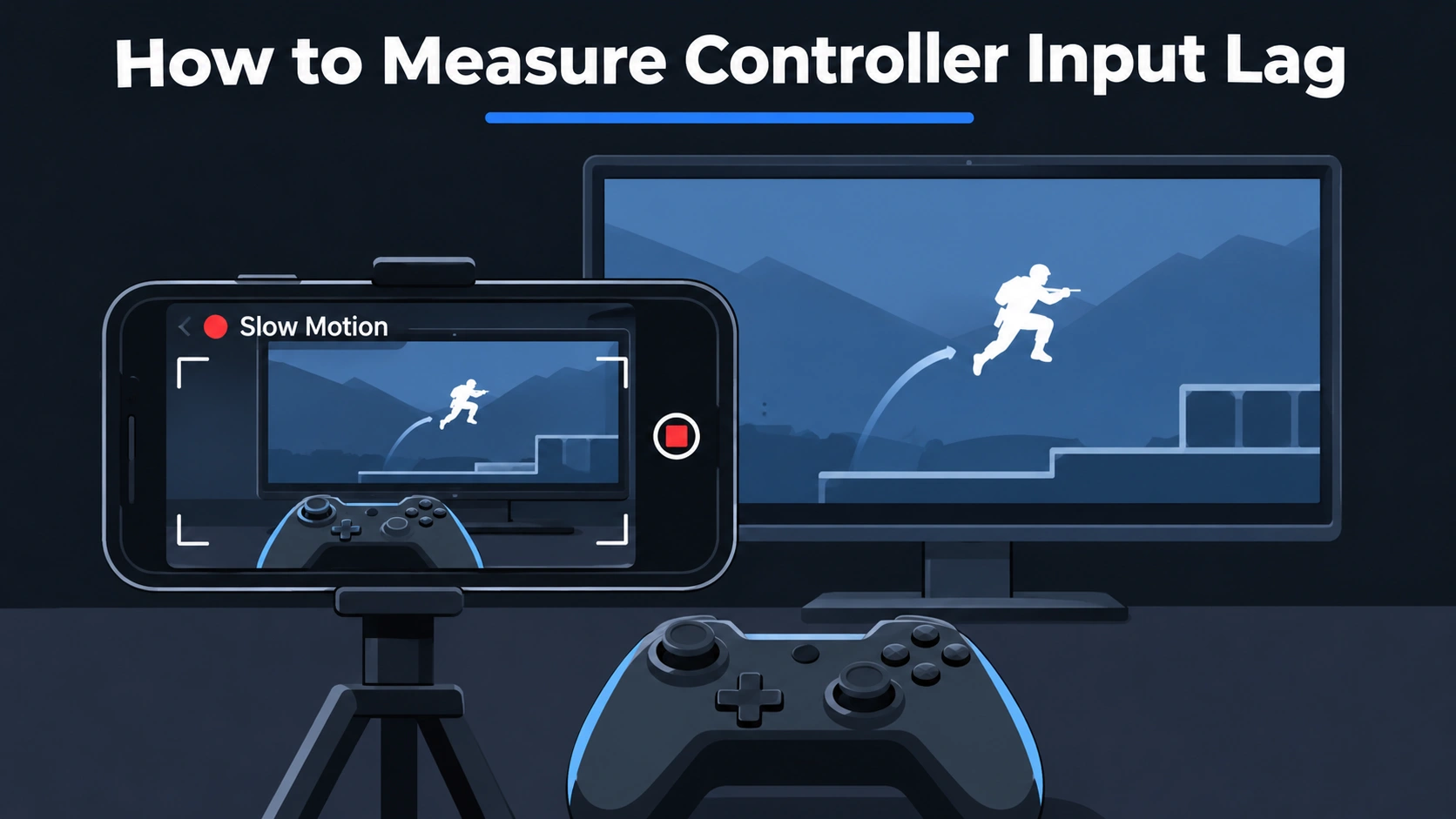
At 240 FPS, each recorded frame represents about 4.17 ms. If you count 12 frames between the input and the on-screen reaction, that is roughly 50 ms of end-to-end latency.
You can estimate latency using the following formula:
Input latency (ms) = Number of frames × 1,000 ÷ Camera FPS
| Camera recording speed | Time per recorded frame |
| 60 FPS | 16.67 ms |
| 120 FPS | 8.33 ms |
| 240 FPS | 4.17 ms |
| 480 FPS | 2.08 ms |
Use the actual recording frame rate rather than the slow-motion playback frame rate.
The method is not lab-grade. Camera frame timing, display scanout, button travel, and uncertainty about the exact point of electrical actuation can all affect the result. Nevertheless, it is useful for identifying substantial differences between configurations.
Repeat the measurement at least 10 times for each configuration and compare the median results. Small differences may fall within the measurement uncertainty of your camera and testing method.
Compare your results before and after each change
Instead of relying entirely on how responsive a game feels, record your measurements before and after each adjustment. The following example illustrates what a comparison might look like.
| Configuration | Estimated input-to-screen latency |
| Bluetooth, 60 Hz, original settings | 83 ms |
| USB, 60 Hz, original settings | 75 ms |
| USB, 144 Hz | 58 ms |
| USB, 144 Hz, optimized graphics settings | 42 ms |
| Bluetooth, 144 Hz, optimized graphics settings | 46 ms |
These figures are illustrative examples, not actual hardware benchmark results.
In this example, switching to USB helps, but optimizing display and rendering settings produces a larger improvement. The final wireless configuration is also close to the wired result, suggesting that replacing the controller may not be necessary.
Keep the same game, display, action, and camera position when comparing wired vs. wireless connections, different refresh rates, or graphics configurations.
12. PS5 controller input lag fixes
If the issue is on PS5, start by checking the display and controller communication settings. Connecting a DualSense with a USB cable does not necessarily mean it is communicating through USB.
Go to Settings > Accessories > Controller (General) > Communication Method > Use USB Cable, if this option is available for your controller.
Next, go to Settings > Screen and Video > Video Output and check whether 120 Hz Output is configured appropriately. You will need a compatible display and a game that supports higher-refresh-rate gameplay.
Try selecting Performance Mode instead of Resolution Mode in supported games. A responsive 60 FPS or 120 FPS mode will often feel better than a quality mode running at a lower frame rate.
If the delay remains, update the DualSense firmware, try another USB data cable, and test on another display if possible.
You can also reset a standard DualSense controller by turning off your PS5, disconnecting the controller, and holding the recessed reset button on its back for at least five seconds using a small pin. Reconnect the controller with a USB cable and press the PS button.
13. Xbox controller input lag fixes
On Xbox consoles, compatible wireless controllers use the dedicated Xbox Wireless protocol rather than standard Bluetooth. That means a controller can feel perfectly fine on Xbox but behave differently when paired with a Windows PC over Bluetooth.
Update the controller through Xbox Accessories, test it wired, and make sure the console is using the correct refresh rate and display settings. You can check these under Settings > General > TV & display options.
Select 120 Hz if supported by your display and configuration, and make sure your television’s low-latency gaming mode is active. Also check whether the game offers a performance mode that increases its underlying frame rate.
If the problem only appears during Xbox Cloud Gaming or remote play, the issue may be network-related rather than local controller input lag.
14. Do not confuse input lag with network lag
A lot of players blame the controller when the real problem is online latency. If your camera and movement feel responsive in offline play, but enemies teleport, hit registration feels delayed, or your character rubberbands, the issue is likely network or server related.
| Symptom | More likely explanation |
| Camera reacts late in offline mode | Local input or rendering latency |
| Enemies teleport around the screen | Network instability |
| Shots register late online | Network or server latency |
| Character suddenly returns to a previous position | Rubberbanding |
| Camera movement becomes delayed during FPS drops | Rendering performance |
| Every action feels delayed during cloud gaming | Streaming and network latency |
These symptoms are not definitive, since games handle movement and network synchronization differently.
The easiest way to separate controller input lag from network lag is to test the same actions offline. If the delay disappears, your controller is probably not the main culprit.
Cloud gaming adds another layer to this because your inputs have to travel over the network and the video stream has to come back. Even the best controller cannot eliminate that round trip.
15. What if controller input lag appears suddenly?
If your controller was working normally yesterday but feels delayed today, check what has changed before adjusting your entire setup. Recent Windows updates, graphics drivers, controller firmware, newly installed software, and changes to display settings can all contribute to unexpected input problems.
Restart your system, reconnect the controller, and test a different game. Check whether your display has reverted to a lower refresh rate and whether any newly installed applications are interfering with controller input.
If the problem started immediately after a driver update, consider rolling back to the previous known-good version through official tools where supported.
Avoid random registry tweaks, unofficial driver updater applications, and third-party latency optimization scripts. These may introduce additional problems without addressing the actual cause of the delay.
16. When should you replace the controller?
A controller is worth replacing when you have good reason to believe the hardware itself is at fault.
If the problem follows the same controller across multiple devices, persists on both wired and wireless connections, and remains after firmware updates and resets, a hardware issue becomes much more likely.
Missed button presses, inconsistent analog behavior, random disconnects, or delay affecting only certain inputs are all potential signs that the controller may be failing. If it is still under warranty, contact the manufacturer before opening it or trying hardware repairs.
If you decide to buy a replacement, prioritize independently measured button and stick latency, connection stability, and compatibility with your gaming platform rather than advertised polling rate alone.
Fix controller input lag without spending money
Many controller input lag problems can be improved without buying a new controller. Depending on the cause, the biggest gains may come from fixing display settings, stabilizing the wireless connection, reducing rendering latency, or correcting deadzone and software conflicts.
Use this checklist to make sure you have covered the most relevant troubleshooting steps:
- Test the controller in an offline game.
- Compare wired and wireless connections.
- Check batteries, cables, USB ports, and wireless receiver placement.
- Update controller firmware and Bluetooth drivers.
- Verify your display refresh rate and enable TV Game Mode.
- Check Steam Input and conflicting controller software.
- Adjust graphics settings, V-Sync, and Frame Generation.
- Check analog stick deadzones and aim settings.
- Compare latency measurements before and after each change.
- Test the controller on another compatible device.
Test one change at a time and compare results under the same conditions. Once you identify where the delay is actually coming from, the fix becomes much easier – and usually much cheaper.

I’m Alex Mercer, a gaming writer at GamingIMBA, covering video games, esports, and industry news. My work spans game guides, competitive gaming, indie titles, and major updates, with a focus on explaining mechanics, trends, and developments that matter to players. I aim to make every article clear, accurate, and genuinely useful.