Moving an inventory full of cobblestone into a chest, crafting dozens of items without repeatedly clicking or finding chunk boundaries while building a farm can all be done with a few keystrokes. Minecraft has plenty of keyboard shortcuts beyond the usual movement and inventory controls, and some are surprisingly easy to miss.
This guide covers Minecraft keyboard shortcuts, hotkeys and default keybinds for Java and Bedrock Edition on PC, including inventory management, crafting, building, combat and debugging. Unless otherwise specified, the combinations refer to the default keyboard and mouse settings.
Last updated: November 26, 2026. This guide reflects Java Edition 26.3 and Bedrock Edition 26.63 for Windows. Changes announced for upcoming versions are identified separately.
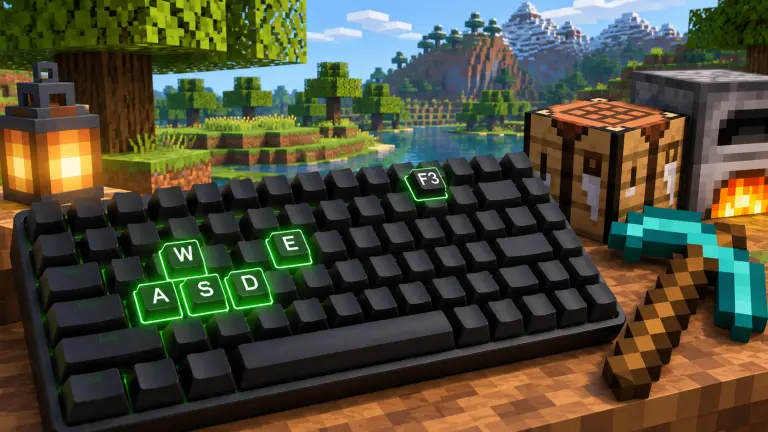
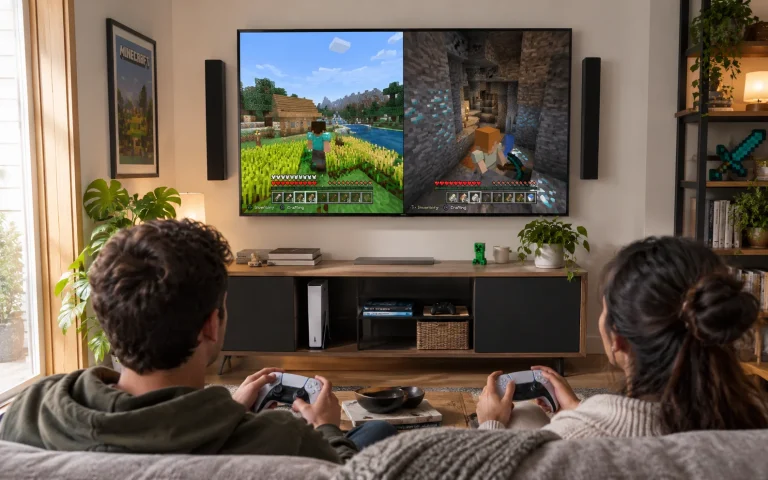
| Image disclosure: The infographics in this guide are AI-generated illustrations based on documented Minecraft controls and keyboard shortcuts. They are intended as visual learning aids rather than actual in-game screenshots. Some interface elements and item designs may differ from those in the game. |
Minecraft Keyboard Shortcuts Cheat Sheet
These are some of the most useful Minecraft shortcuts to keep nearby while playing. More advanced combinations and instructions for using them are covered in the following sections.
| Shortcut | Action | Edition |
| Shift + Left Click | Quickly transfer an item stack | Both |
| Shift + Double Click | Transfer multiple matching stacks | Java |
| Double Left Click | Collect matching items into one stack | Both |
| Right Click on a stack | Pick up half of the stack | Both |
| Hover + 1-9 | Move or swap items with a hotbar slot | Both* |
| Q | Drop an item | Both |
| Ctrl + Q | Drop an entire stack | Java |
| F | Swap main-hand and offhand items | Java |
| F5 | Change camera perspective | Both |
| F3 | Open the debug overlay | Java |
| F3 + B | Display entity hitboxes | Java |
| F3 + G | Display chunk boundaries | Java |
| F3 + H | Toggle advanced item tooltips | Java |
| F3 + A | Reload chunks | Java |
| F3 + F6 | Open Debug Options | Java |
| C + 1-9 | Save a Creative hotbar | Java |
| X + 1-9 | Load a saved Creative hotbar | Java |
| Ctrl + Alt + C | Copy your coordinates when enabled | Bedrock |
Inventory transfers using number keys were introduced in Bedrock Edition 1.21.120. Older installations may not support them.
Default Minecraft Keyboard and Mouse Controls
The standard Minecraft PC controls are largely shared between Java and Bedrock. Most of these can be reassigned through the game’s settings, so your controls may differ if you have previously customized them.
| Key | Default action |
| W | Move forward |
| A | Move left |
| S | Move backward |
| D | Move right |
| Space | Jump |
| Left Shift | Sneak |
| Left Ctrl | Sprint |
| E | Open inventory |
| Q | Drop selected item |
| 1-9 | Select a hotbar slot |
| Left Mouse Button | Attack or break blocks |
| Right Mouse Button | Use items, interact or place blocks |
| Middle Mouse Button | Pick block |
| Mouse Wheel | Scroll through the hotbar |
| F5 | Change camera perspective |
| F11 | Toggle fullscreen |
| T | Open chat |
| Esc | Open the game menu |
Java Edition includes several additional controls for managing the interface and accessing game features.
| Java Edition key | Action |
| F1 | Hide or show the HUD |
| F2 | Take a screenshot |
| F3 | Open or close the debug overlay |
| F4 | Toggle the visual effect when spectating certain entities |
| G | Open Quick Actions |
| L | Open Advancements |
| P | Open Social Interactions |
In Java Edition, scrolling the mouse wheel while in Spectator Mode changes your flying speed instead of selecting a hotbar slot.
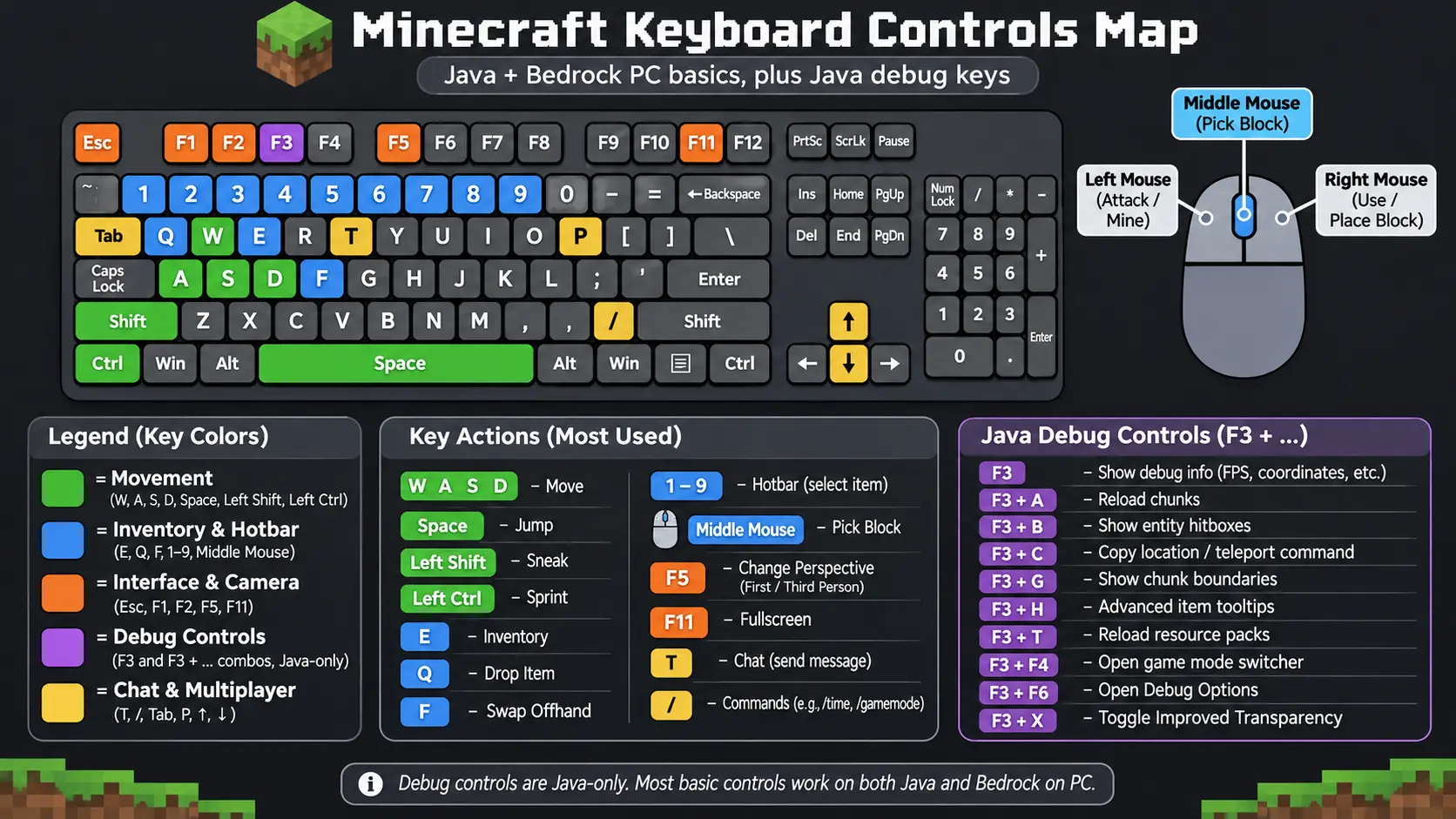
Pressing Esc does not pause a multiplayer server. Other players and the world continue to operate even when you have a menu open. Pausing in single-player depends on the edition and whether the session supports it.
Minecraft Inventory and Chest Shortcuts
Inventory management is where Minecraft’s keyboard and mouse shortcuts can save the most time. Sorting resources after a long mining session becomes considerably easier once you stop dragging every stack into a chest individually.
Moving Items and Stacks Faster
| Shortcut | Action | Edition |
| Shift + Left Click | Transfer a stack between inventories | Both |
| Double Left Click | Collect matching items into one stack | Both |
| Shift + Double Click | Transfer multiple stacks of the same item type | Java |
Shift + Left Click automatically transfers an item stack between your inventory and an open container, provided there is enough space. It also works when collecting materials from storage.
To move several stacks of the same material in Java Edition, open a chest, pick up an item with your cursor, hold Shift and double-click a stack of the material you want to transfer. Matching stacks from that inventory will move to the other inventory as space permits.
For example, if your inventory contains several stacks of cobblestone mixed with ores, food and tools, this combination lets you transfer the cobblestone into a chest without moving everything else.
Double Left Click performs a different action. It collects matching items into the stack held by your cursor, up to the item’s maximum stack size. This is particularly useful when organizing partially filled stacks.
Splitting and Distributing Item Stacks
| Mouse shortcut | Action |
| Right Click on a stack | Pick up half of the stack, rounded up when necessary |
| Right Click on a slot while holding items | Place one item |
| Left Click + Drag | Distribute items evenly across eligible slots |
| Right Click + Drag | Place one item in each eligible slot |
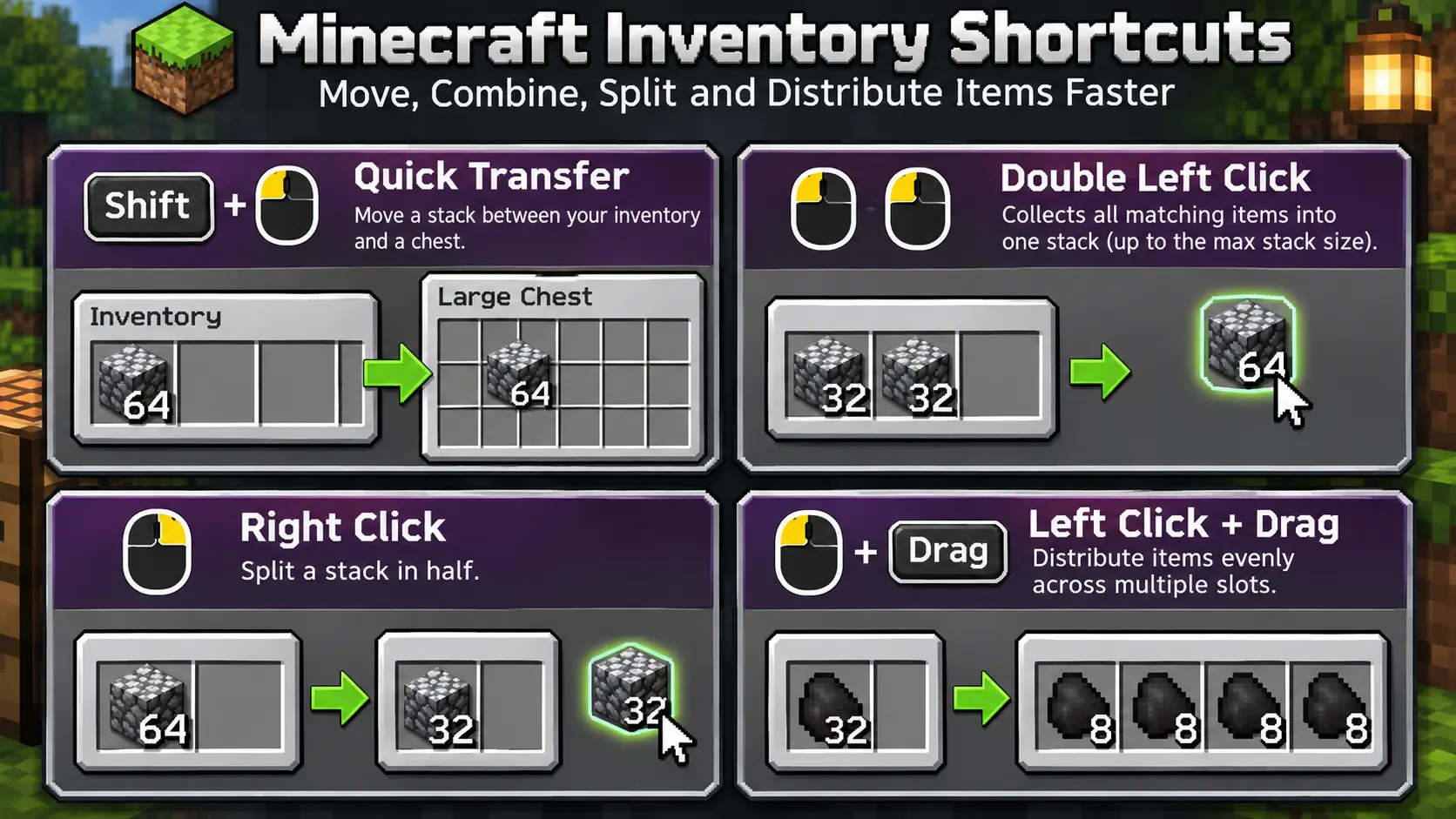
These inventory interactions are available in Java and Bedrock with keyboard and mouse controls, although behavior can vary between interfaces and older versions.
Suppose you have 32 pieces of coal and want to distribute them across four empty storage slots. Pick up the stack and hold Left Click while dragging across all four slots. Each slot receives eight pieces.
Alternatively, holding Right Click while dragging across eight empty slots places one item in each. This is especially useful when arranging crafting ingredients or dividing resources into small quantities.
Hotbar and Offhand Shortcuts
| Shortcut | Action | Edition |
| Hover over an item + 1-9 | Move or swap the item with the corresponding hotbar slot | Both* |
| Hover over an item + F | Swap the item with the offhand slot | Java |
| F during gameplay | Swap main-hand and offhand items | Java |
Number-key inventory transfers require Bedrock Edition 1.21.120 or later.
If your pickaxe is in the main inventory and you want it in your second hotbar slot, hover over the pickaxe and press 2. You can rearrange your equipment without dragging items across the inventory screen.
The same approach works for the offhand in Java Edition. Hover over a shield, torch or another item and press F to move it directly into that slot.
Bedrock has more restrictive offhand functionality and does not offer the same unrestricted item-swapping shortcut as Java.
Dropping Items and Entire Stacks
| Shortcut | Action | Edition |
| Q | Drop one item | Both |
| Ctrl + Q | Drop the entire stack | Java |
In Java Edition, these combinations also work when hovering over items in an open inventory.
Be careful with Ctrl + Q, particularly near lava or while exploring dangerous areas. If you accidentally select a stack of valuable resources, the entire stack will be dropped rather than a single item.
Minecraft Crafting Shortcuts
Crafting shortcuts are particularly useful when preparing large quantities of building materials, torches, food or other frequently used items.
| Shortcut | Action in Java Edition |
| Shift + Left Click on crafting output | Craft multiple items and transfer them into your inventory |
| Right Click + Drag | Place one ingredient in each selected crafting slot |
| Left Click + Drag | Distribute ingredients across crafting slots |
| Shift + Click on a recipe | Fill the crafting grid with multiple sets of ingredients |
| Space or Enter | Refill the crafting grid using the previously selected recipe |
The recipe-refill shortcut using Space or Enter was introduced in Java Edition 1.21.2 and remains available in Java 26.3.
Upcoming change: Java Edition 26.4 development builds have introduced a dedicated keybind for repeating recipes, assigned to R by default. This change is not part of Java 26.3.
For example, when crafting stone bricks, select the recipe from the recipe book and use Shift + Left Click on the finished product to craft multiple items. The game repeats the crafting operation as permitted by the available ingredients and inventory space.
Be more careful when mass-crafting expensive equipment. Shift-clicking the output of an armor recipe could turn more of your materials into armor than you intended.
The quick-transfer shortcut also works with furnaces. Shift-clicking a suitable item in your inventory can move it into the appropriate furnace slot.
Minecraft F3 Shortcuts and Debug Hotkeys
The F3 key in Java Edition provides technical information about your world, character and game performance. Holding it while pressing another key activates additional debug functions that can help with exploration, farm construction, troubleshooting and resource pack development.
The following F3 shortcuts are exclusive to Java Edition. Bedrock does not have an equivalent debug system.
Coordinates and World Information
| Shortcut | Action |
| F3 | Toggle the debug overlay |
| F3 + C | Copy your current location as a teleport command |
| F3 + G | Show or hide chunk boundaries |
| F3 + B | Show or hide entity hitboxes |
| F3 + H | Enable or disable advanced item tooltips |
The debug overlay can display your XYZ coordinates, facing direction and information about the surrounding world. This is useful when recording the location of a village, underground base, Nether portal or other point of interest.
F3 + G is particularly valuable when building farms that depend on chunk boundaries. Minecraft chunks measure 16 by 16 blocks horizontally, and the shortcut displays their boundaries directly in the world.
Pressing F3 + H enables advanced item tooltips, allowing you to inspect information such as item identifiers and the remaining durability of damaged tools and equipment.
The location-copying shortcut, F3 + C, copies your position in the form of a teleport command, including additional location information rather than just three coordinate values. You still need the appropriate permissions to execute that command.
Do not hold F3 + C for ten seconds unless you intentionally want to trigger a debug crash. A brief press is enough to copy your location.
Some servers and worlds use reduced debug information or other restrictions that can limit access to certain debug features.
Performance and Troubleshooting Shortcuts
| Shortcut | Action |
| F3 + A | Reload chunks |
| F3 + T | Reload resource packs |
| F3 + 1 | Toggle the performance pie chart |
| F3 + 2 | Toggle frame rate and tick performance graphs |
| F3 + F6 | Open Debug Options |
| F3 + P | Toggle automatic pausing when the game loses focus |
| F3 + L | Record performance profiling data |
| F3 + X | Toggle Improved Transparency in Java 26.3 |
If chunks appear to be missing or terrain is not displaying correctly, F3 + A is worth trying before restarting Minecraft. Similarly, F3 + T can reload changed textures and other resource pack content without closing the game.
Neither combination is a permanent fix for low FPS, corrupted worlds or network problems. They simply reload specific game resources.
The performance graphs help investigate frame rate fluctuations and world simulation performance. The performance pie chart can also be explored using number keys while it is active.
Java Edition 26.3 introduced F3 + X, which toggles Improved Transparency. This can be useful when investigating rendering behavior involving translucent objects.
The F3 + L shortcut is intended for performance diagnostics. It creates profiling data that can be examined when investigating more persistent technical problems.
Additional Debug Shortcuts
| Shortcut | Action |
| F3 + D | Clear the visible chat |
| F3 + N | Switch between Spectator and the previous game mode |
| F3 + F4 | Open the game mode switcher |
| F3 + I | Copy targeted block or entity data under supported conditions |
| F3 + S | Export dynamic textures |
| F3 + V | Display client version information |
| F3 + Esc | Pause without displaying the pause menu, where pausing is supported |
The F3 + D combination clears visible chat messages but does not erase the history of commands you have entered.
Changing game modes through F3 + N or F3 + F4 requires the appropriate permissions. These shortcuts cannot bypass restrictions imposed by a multiplayer server.
Some of the more technical debug commands are primarily useful to developers, resource pack creators and players investigating game behavior.
Changed and Removed F3 Shortcuts
Some Minecraft hotkey lists still recommend combinations that no longer work in recent versions.
| Shortcut | Previous function | Status |
| F3 + Q | Display a list of debug shortcuts | Removed in Java 1.21.11 |
| F3 + F | Increase render distance | Removed in Java 1.19 |
| F3 + Shift + F | Decrease render distance | Removed in Java 1.19 |
The debug overlay was redesigned in Java Edition 1.21.9, followed by additional control changes in 1.21.11. Debug controls can now be customized through Options > Controls > Key Binds > Debug.
If an older tutorial tells you to press F3 + Q, look for the Debug category in your keybind settings instead.
You can also use F3 + F6 to open Debug Options, customize information displayed in the overlay and configure available debug renderers.
Players using older Minecraft versions may still have access to the removed combinations.
Minecraft Creative Mode and Building Shortcuts
Creative Mode has additional controls that make large construction projects easier. Selecting blocks directly from the world, copying block entity data and saving frequently used building materials can significantly reduce time spent searching the inventory.
Flying and Movement in Creative Mode
| Shortcut | Action |
| Double Tap Space | Start or stop flying |
| Hold Space | Fly upward |
| Hold Left Shift | Fly downward |
| Left Ctrl while moving forward | Sprint-fly |
You can also change perspective using F5 to inspect a construction from another angle without interrupting your flight.
Pick Block and Copying Block Data
Point your crosshair at a block and press the Middle Mouse Button to select the corresponding item.
In Survival Mode, the item must already be available in your inventory. Creative Mode can supply the item even if you are not carrying it.
The more advanced Ctrl + Middle Click combination can copy additional data from supported block entities in Creative Mode. This is available in Java and supported Bedrock versions.
For example, in Java Edition, copying a configured command block or a container with its block entity data can preserve information that would otherwise be lost when selecting the standard block.
Pick Block does not copy every possible block state or property. Data preservation depends on the block, edition and game version.
Saving and Loading Hotbar Presets
Java Edition allows Creative players to store nine separate hotbar configurations.
| Shortcut | Action |
| C + 1-9 | Save the current hotbar |
| X + 1-9 | Load a previously saved hotbar |
For example, you could save stone bricks, stairs, slabs and other structural materials to preset 1, glass and decorative items to preset 2, and redstone components to preset 3.
Instead of repeatedly searching the Creative inventory, switch between configurations as your construction progresses.
Loading a preset replaces your current hotbar contents, so save any arrangement you want to reuse before switching.
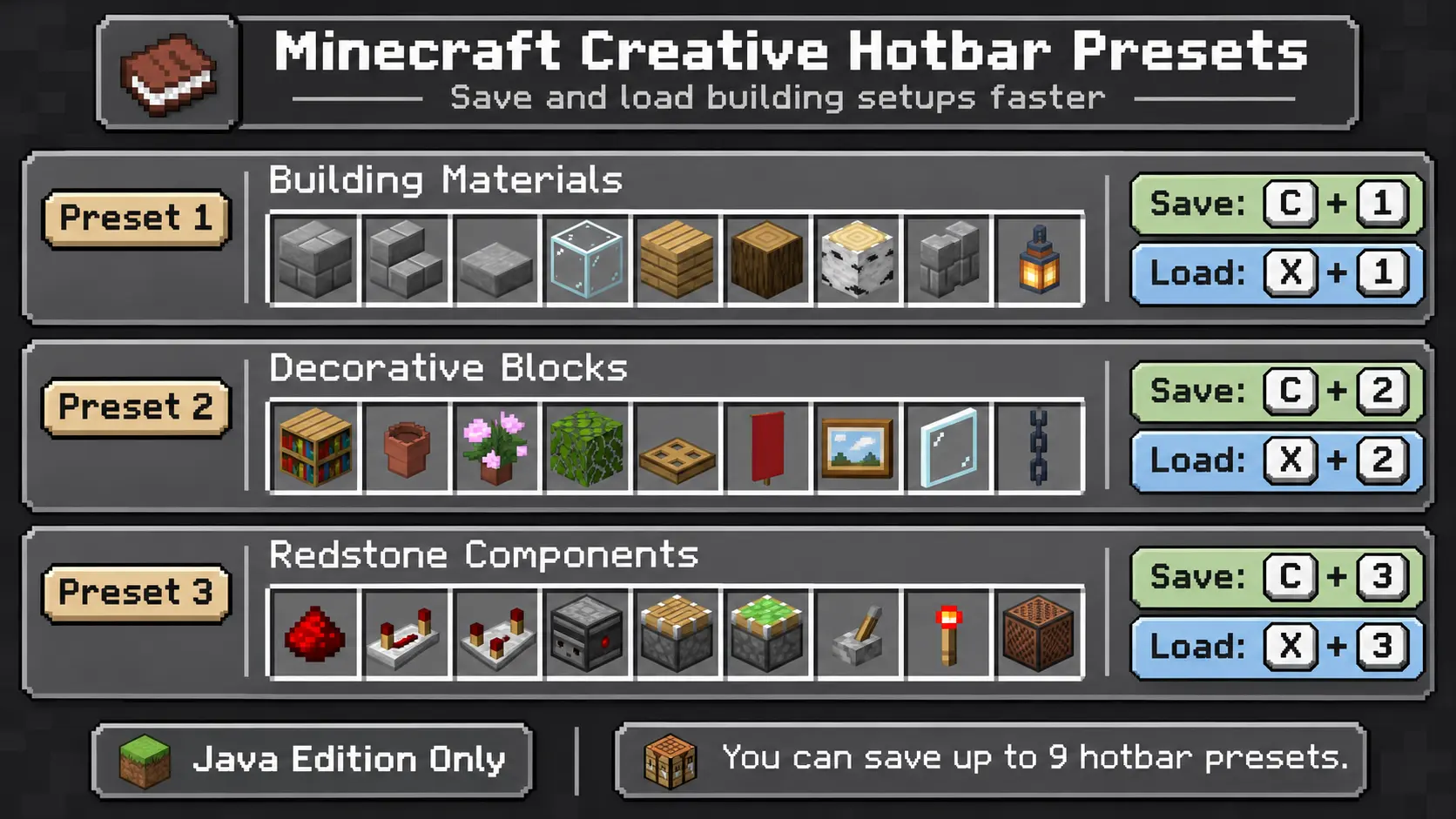
Bedrock Edition does not currently offer an equivalent built-in system of nine saved Creative hotbars.
Managing the Creative Inventory
In Java Creative Mode, Middle Click on an item in a regular inventory slot can create a full stack of that item when used under the appropriate inventory conditions.
You can also clear your entire inventory by holding Shift + Left Click on the destroy-item slot marked with an X in the Survival Inventory tab of the Creative interface.
This removes your inventory contents immediately, including equipment you may have wanted to keep.
Minecraft Combat and PvP Keybinds
The best Minecraft keybinds for PvP depend on your keyboard layout, hand position and fighting style. You do not necessarily need to change the default controls, but placing frequently used actions within comfortable reach can help during combat.
| Keybind | Combat use |
| Left Ctrl | Sprint |
| Left Shift | Sneak |
| 1-9 | Select weapons, food and utilities |
| F | Swap main-hand and offhand items in Java |
| Right Mouse Button | Use an item or interact |
| Left Mouse Button | Attack |
Using the number keys instead of the mouse wheel allows you to select a specific weapon or utility without scrolling through unwanted items.
Keeping your sword, axe, food and other frequently used items in the first few hotbar slots is a practical starting point. These keys are generally easier to reach while moving with WASD.
If reaching the higher number keys interrupts your movement, consider assigning individual hotbar slots to keys such as R, V or spare mouse buttons.
Check for existing assignments before making changes. For example, a newer Minecraft version may use a key that was previously unassigned in an older release.
Java and Bedrock also have different combat mechanics and offhand functionality. A keybind arrangement designed around Java shields or crystal PvP may not be equally useful in Bedrock.
Change one or two frequently used keybinds at a time. This gives you an opportunity to develop consistent muscle memory without having to relearn your entire keyboard layout.
Minecraft Chat and Multiplayer Shortcuts
| Shortcut | Action | Edition |
| T | Open chat | Both |
| / | Open chat with a forward slash ready for commands | Both |
| Tab in chat | Autocomplete supported commands and arguments | Both |
| Up Arrow in chat | Recall previously entered messages or commands | Java |
| Down Arrow in chat | Navigate forward through chat history | Java |
| Tab during gameplay | Display the multiplayer player list | Java |
| P | Open Social Interactions | Java |
The autocomplete function is particularly helpful when entering long commands, player names or item identifiers. Begin entering a command and press Tab to complete or cycle through available suggestions.
Java Edition also allows you to reorganize saved multiplayer servers.
| Shortcut in the server selection menu | Action |
| Shift + Up Arrow | Move the selected server upward |
| Shift + Down Arrow | Move the selected server downward |
| Shift + Left Click on another server | Swap the positions of two servers |
These shortcuts are useful if your multiplayer server list contains several servers and you want your most frequently visited ones near the top.
Minecraft Bedrock Keyboard Shortcuts and Hotkeys
Most standard Minecraft PC controls work in both editions, but Bedrock has several functions of its own. Coordinate copying, the paper doll and configurable command macros are particularly useful examples.
The following combinations refer to normal Bedrock gameplay with a keyboard and mouse, rather than the separate Bedrock Editor.
Bedrock-Specific Keyboard Shortcuts
| Shortcut | Action |
| Ctrl + Alt + C | Copy your current coordinates |
| Ctrl + Alt + X | Copy the coordinates of the targeted block |
| F4 | Open the social drawer in supported versions |
| F8 | Toggle the paper doll on the HUD |
| Alt + Assigned Key | Execute a configured command macro |
To use the coordinate-copying shortcuts, open Settings > Creator > Enable Copy Coordinate UI and activate the feature.
You can then copy your position or the location of a targeted block and paste it into a message, command or external document. This is useful when sharing the location of a base, recording a portal location or preparing a command that requires specific coordinates.
The paper doll is the small character representation displayed on the HUD. Pressing F8 toggles its visibility.
Bedrock Command Macros
Bedrock Edition 26.0 introduced configurable command macros. These allow players to assign frequently used commands to keyboard shortcuts rather than typing the complete command into chat every time.
To configure them, enable Command Macros in the Creator settings and assign the desired commands and keys in the Keyboard & Mouse settings.
Bedrock supports up to ten configured macros, activated using Alt + the assigned key. The second key depends on your configuration rather than being a universal default.
For example, you could configure a macro for a command that changes the time of day in a Creative world you use for building and testing.
Command macros do not bypass command permissions or world restrictions. You must already be authorized to execute the assigned command.
Minecraft Java vs. Bedrock Keyboard Shortcuts
| Function | Java Edition | Bedrock Edition |
| Number-key inventory transfers | Supported | Supported since 1.21.120 |
| Debug overlay | F3 | No direct equivalent |
| Chunk boundaries | F3 + G | No standard equivalent |
| Entity hitboxes | F3 + B | No standard equivalent |
| Advanced item tooltips | F3 + H | No direct equivalent |
| Copy location | F3 + C | Ctrl + Alt + C |
| Save Creative hotbar | C + 1-9 | Not available |
| Load Creative hotbar | X + 1-9 | Not available |
| Main-hand and offhand swap | F | No direct equivalent |
| Configurable command macros | No direct equivalent | Alt + Assigned Key |
Is There an F3 Equivalent in Minecraft Bedrock?
Minecraft Bedrock Edition does not have a direct equivalent to Java’s F3 debug screen. You can enable Show Coordinates in your world settings to display your XYZ position, but this does not provide the additional technical information found in Java’s debug overlay.
Bedrock players can use coordinate calculations or compatible add-ons for tasks involving chunk boundaries and other technical information. For example, horizontal chunk boundaries occur at X and Z coordinates that are multiples of 16.
This allows you to determine where chunks begin even without the visual boundaries provided by Java’s F3 + G shortcut.
How to Change Minecraft Keybinds
Most standard keyboard and mouse controls can be customized. This is useful when playing with a compact keyboard, using additional mouse buttons or adjusting controls to suit your preferred playstyle.
Changing Keybinds in Java Edition
- Open the game menu.
- Select Options.
- Open Controls > Key Binds.
- Find the action you want to change.
- Select its current keybind and press the replacement key.
Recent Java versions also provide a Debug category within the keybind settings, allowing you to customize supported debug actions.
If multiple controls use the same key, check whether their functions conflict. Some assignments can coexist because they are used in different contexts, while others may prevent an action from working correctly.
Use the reset controls to restore the default assignments if your custom configuration becomes uncomfortable.
Changing Keybinds in Bedrock Edition
Open Settings > Keyboard & Mouse and locate the control you want to modify. Select its current assignment and press the replacement key.
The same settings area contains supported coordinate-copying controls and configurable command macros when their corresponding features are enabled.
Not every keyboard or mouse interaction can be individually reassigned. Some inventory actions rely on predefined mouse and modifier-key combinations.
Why Are My Minecraft Keyboard Shortcuts Not Working?
Different Minecraft editions, older game versions, keyboard configurations and server permissions can all affect how the game receives input.
| Problem | Possible solution |
| F3 changes screen brightness or volume | Try Fn + F3 or adjust function key settings |
| Keyboard has no dedicated F keys | Check the keyboard’s secondary function layer |
| F3 + Q does nothing | Removed in Java 1.21.11 |
| F3 combinations fail in Bedrock | Java debug shortcuts are not supported |
| F3 + F4 does not switch game modes | Check your command or operator permissions |
| Debug information is missing | Check reduced debug information and server restrictions |
| Several actions use the same key | Check for conflicting keybinds |
| Ctrl + Alt + C does nothing in Bedrock | Enable Copy Coordinate UI and check the key assignment |
| Inventory number-key shortcuts fail in Bedrock | Check that you are using version 1.21.120 or later |
| Alt + Assigned Key does not run a macro | Enable command macros and check permissions |
| A shortcut from an old tutorial fails | Check the Minecraft version used in the tutorial |
Using Minecraft Shortcuts on a 60% Keyboard
Compact gaming keyboards often lack a dedicated function row. Instead, F1 through F12 are accessed through a secondary layer, typically using the Fn key.
For example, on a keyboard where Fn + 3 produces F3, activating F3 + G may require holding Fn + 3 before pressing G.
The exact combination depends on your keyboard model and how its function layer processes additional key presses. Some keyboards allow you to lock the function layer or create custom assignments through their configuration software.
Recent Java versions also allow supported debug keybinds to be reassigned, providing another option if your keyboard makes the default combinations difficult to use.
If you frequently use Minecraft’s debug tools, a keyboard with a dedicated function row can make these combinations more convenient.
Operating System and Keyboard Conflicts
Windows, macOS and keyboard management software can intercept certain combinations before Minecraft receives them.
On macOS, function keys may control system volume or display brightness instead of performing their standard F-key functions. Changing the system’s function key behavior or using Fn can resolve this.
Java Edition 26.3 introduced a Quit Shortcuts setting that lets players control whether certain operating-system shortcuts can close the game. These include Alt + F4 on Windows and Linux, and Command + Q or Command + W on macOS.
If a shortcut stops working after an update, check the in-game keybind menu and the release notes before reinstalling Minecraft or changing your entire keyboard configuration.
Sources and References
- Minecraft Help – Input Actions in Minecraft: Java Edition
- Minecraft Wiki – Controls
- Minecraft Wiki – Inventory
- Minecraft Java Edition 1.21.11 Release Notes
- Minecraft Java Edition 26.3 Release Notes
- Microsoft Learn – Copy and Paste Coordinates
- Minecraft Official Changelogs

The GamingImba Editorial Team covers gaming news, in-depth guides, gaming hardware, industry trends, esports and more. Our goal is to provide accurate, practical, and reliable content that helps gamers stay informed and get more out of their gaming experience.